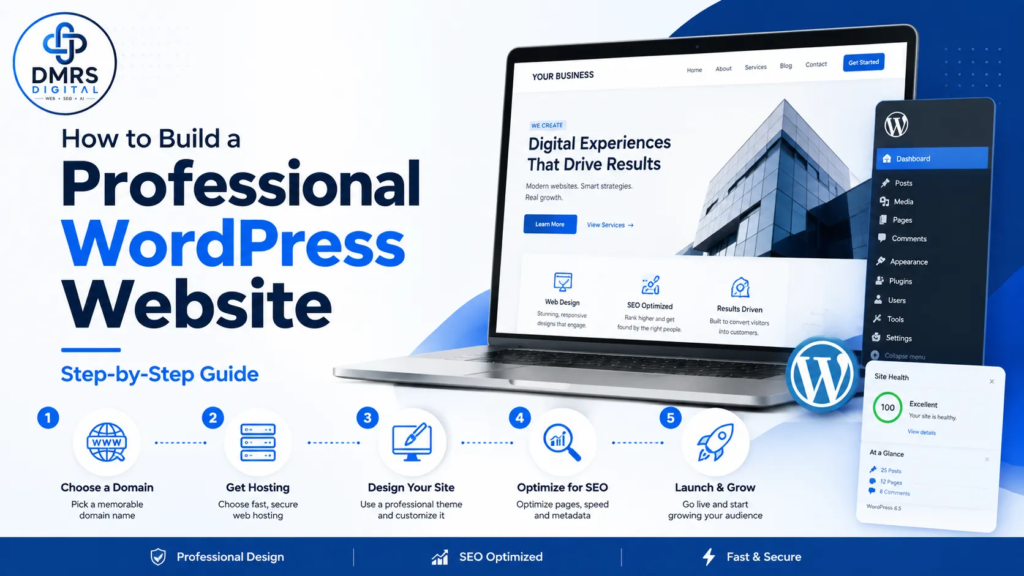
Building a website is easier today than it was a few years ago. However, creating a website that looks professional, loads quickly, appears correctly on mobile devices and supports business growth requires proper planning.
WordPress is one of the most flexible platforms for building business websites, blogs, portfolios, online stores and educational websites. It allows beginners to manage content without coding, while still giving developers the freedom to create advanced features.
In this guide, you will learn how to build a WordPress website step by step, from planning the website to launching and maintaining it.
This guide explains how to build a WordPress website that is responsive, secure, search-friendly and easy to manage.
What Is WordPress?
WordPress is a content management system that allows you to create and manage a website through a visual dashboard.
You can use WordPress to build:
- Business websites
- Personal portfolios
- Blogs and learning platforms
- E-commerce stores
- Membership websites
- Service-booking websites
- News and magazine websites
- Course and educational websites
WordPress itself is free, but you normally need a domain name, web hosting and, depending on your requirements, premium themes or tools.
Before learning how to build a WordPress website, it is important to understand the role of hosting, themes, plugins and content.
Step 1: Define the Purpose of Your Website
Before buying a domain or selecting a theme, decide what the website should achieve.
Ask yourself:
- Who is the website for?
- What problem does the business solve?
- What action should visitors take?
- Do you want enquiries, calls, bookings, sales or course registrations?
- What information will visitors need before contacting you?
For example, a service-business website may focus on generating WhatsApp enquiries, while an e-commerce website needs product pages, secure checkout and payment integration.
A clear objective helps you plan the right pages, design and calls to action.

Step 2: Identify Your Target Audience
A professional website should not be designed only according to the owner’s personal preference. It should be created for the people who will use it.
Define your ideal visitor by considering:
- Age group
- Location
- Industry or profession
- Main problems
- Buying behaviour
- Preferred device
- Questions they may ask
- Reasons they may trust or reject a business
For example, a website targeting business owners should communicate expertise, reliability and results. A website targeting students should make the course structure, fees, timing and application process easy to understand.
Understanding your audience helps you select the right content, colours, page structure and messaging.
Step 3: Choose a Domain Name
A domain name is the address visitors enter to open your website.
For example:
yourbusiness.com
- Short and easy to remember
- Easy to spell
- Relevant to the business
- Free from unnecessary numbers and symbols
- Suitable for long-term branding
A .com domain is usually a strong choice for businesses serving national or international customers. Country-specific extensions can also be useful for businesses focused on one country.
Before purchasing the domain, check whether the same or a similar name is already being used by another established business or trademark.
Step 4: Select Reliable Web Hosting
Web hosting stores your website files and makes them accessible on the internet.
Poor hosting can cause:
- Slow page loading
- Frequent downtime
- Security issues
- Limited storage
- Weak customer support
- Difficulty handling traffic
When selecting hosting, check:
- Server location
- Storage and bandwidth
- SSL certificate availability
- Backup system
- WordPress installation support
- Security features
- Customer support
- Renewal pricing
- Email hosting, if required
For a new business website, shared WordPress hosting may be enough. Larger websites, high-traffic stores and web applications may require VPS or cloud hosting.
Do not select hosting only because the introductory price is low. Check the renewal cost and technical limitations as well.
A clear page structure is essential when deciding how to build a WordPress website for a business or professional service.
Step 5: Install WordPress
Most hosting control panels offer one-click WordPress installation.
The process normally includes:
- Open your hosting control panel.
- Find WordPress Installer or Softaculous.
- Select the domain.
- Choose HTTPS.
- Enter the website name.
- Create an administrator username.
- Create a strong password.
- Enter the administrator email.
- Complete the installation.
Avoid using common usernames such as admin. Use a strong password and save the login details securely.
After installation, the WordPress dashboard can usually be accessed through:
yourdomain.com/wp-admin
After logging in, complete the basic settings before designing the website.
Site title and tagline
Go to:
Settings → General
Permalink structure
Go to:
Settings → Permalinks
Post nameyourdomain.com/website-developmentyourdomain.com/?p=123Time zone
Select the correct time zone so scheduled posts, reports and form entries show the correct time.
Search-engine visibility
While the website is under development, you may discourage search engines from indexing it. Remember to disable this option before launch.
Step 7: Choose a Suitable WordPress Theme
The theme controls the visual foundation of the website.
A good WordPress theme should be:
- Lightweight
- Mobile responsive
- Regularly updated
- Compatible with your page builder
- Easy to customise
- Secure
- Suitable for your industry
Avoid themes that include too many unnecessary animations, sliders and built-in features. Heavy themes can reduce speed and make future maintenance difficult.
For most professional websites, a lightweight theme combined with Gutenberg or Elementor can provide enough design flexibility.
Step 8: Install Only Essential Plugins
Plugins add features to WordPress. However, installing too many plugins can cause conflicts, security risks and performance problems.
Common plugin categories include:
- SEO
- Caching and performance
- Security
- Backups
- Contact forms
- Image optimisation
- Analytics
- E-commerce
- Spam protection
Install only the plugins that are genuinely needed.
For example, you should not install two SEO plugins or multiple caching plugins at the same time. They can create duplicate sitemaps, conflicting metadata and broken optimisation rules.
Always check:
- Last update date
- Active installations
- Compatibility
- Support history
- User reviews
- Developer reputation
Delete inactive plugins that are no longer required.
Step 9: Plan the Website Structure
A clear website structure helps visitors and search engines understand your content.
A standard business website may include:
- Home
- About
- Services
- Individual service pages
- Portfolio or projects
- Blog or learning centre
- Contact
- Privacy policy
- Terms and conditions
An e-commerce website may also need:
- Shop
- Product categories
- Product pages
- Cart
- Checkout
- Account
- Shipping policy
- Return and refund policy
Keep the navigation simple. Visitors should be able to reach important information within a few clicks.
Step 10: Create a Professional Homepage
The homepage should immediately communicate:
- What the business offers
- Who the service is for
- Why the business is different
- What visitors should do next
A useful homepage structure can include:
Hero section
Include a clear headline, short supporting text and one primary call-to-action.
Example:
Professional WordPress Websites Built for Speed, Search Visibility and Business Growth
Services section
Show the main services with short descriptions and links to detailed service pages.
Benefits or value proposition
Explain what the client gains, such as:
- Mobile-responsive design
- Fast loading
- Easy management
- Technical SEO foundation
- Enquiry integration
- Secure configuration
Work samples
Display real website projects, screenshots or case studies.
At DMRS Digital, our development portfolio includes websites across martial arts, yoga, wellness, nutrition, associations and digital services.
Trust signals
Trust signals may include:
- Client testimonials
- Years of experience
- Completed projects
- Business information
- Secure website connection
- Contact details
- Professional social profiles
Final call-to-action
End the page with a clear next step, such as requesting a consultation, sending a WhatsApp message or completing an enquiry form.
Step 11: Write Clear Website Content
A beautiful design cannot compensate for unclear content.
Your website copy should answer:
- What do you provide?
- Who do you help?
- What problem do you solve?
- How does your process work?
- Why should someone trust you?
- How can they contact you?
Keep paragraphs short and use descriptive headings.
Avoid vague statements such as:
We provide the best solutions for every customer.
Use specific language instead:
We design responsive WordPress websites with clear service pages, enquiry integration, basic technical SEO and performance optimisation.
Do not copy content from competitors. Write original content based on your own services, processes and experience.
Step 12: Make the Website Mobile Responsive
A website should work smoothly across:
- Desktop computers
- Laptops
- Tablets
- Mobile phones
Check every important page on mobile.
Pay attention to:
- Font size
- Button size
- Menu behaviour
- Image dimensions
- Form fields
- Spacing
- Horizontal scrolling
- Sticky headers
- Pop-ups
- WhatsApp and call buttons
A section that looks good on desktop may become too long or difficult to read on mobile. Mobile responsiveness should be reviewed manually, not assumed automatically.
Step 13: Improve Website Speed
Website speed affects user experience, engagement and conversions.
Common reasons for a slow WordPress website include:
- Large images
- Poor hosting
- Heavy themes
- Too many plugins
- Unused CSS and JavaScript
- Auto-playing videos
- Excessive animations
- External fonts and scripts
- No page caching
- Unoptimised database
To improve speed:
- Convert large images to WebP or AVIF.
- Resize images before uploading.
- Enable appropriate page caching.
- Use lazy loading.
- Remove unused plugins.
- Reduce unnecessary animations.
- Use a content delivery network when suitable.
- Optimise CSS and JavaScript carefully.
- Use reliable hosting.
- Test important pages regularly.
Tools such as Google PageSpeed Insights can help identify performance issues, but do not focus only on reaching a perfect score. The website should also remain functional, visually correct and easy to use.
Step 14: Set Up Basic SEO
Search engine optimisation helps search engines understand and discover your website.
Install one SEO plugin
Use one reliable SEO plugin, such as Rank Math, to manage:
- SEO titles
- Meta descriptions
- XML sitemaps
- Schema markup
- Indexing controls
- Redirects
- Social-sharing information
Select one primary keyword per page
Each important page should focus on a clear search topic.
For example:
Page: WordPress Website Development
Primary keyword: WordPress website development services
Use one main H1 heading per page. Organise supporting sections with H2 and H3 headings.
Write SEO titles and descriptions
Each page should have an original SEO title and meta description.
Add image ALT text
ALT text should describe the image naturally.
Good example:
Responsive WordPress business website displayed on laptop and mobileWeak example:image123
Link related services, articles and resources together. Internal linking helps visitors explore the website and helps search engines understand page relationships.
Step 15: Connect Google Search Console and Analytics
Google Search Console helps you monitor:
- Indexing
- Search queries
- Page performance
- Sitemap status
- Technical errors
- Core Web Vitals
- Manual actions
Google Analytics helps you understand:
- Number of visitors
- Traffic sources
- Popular pages
- User behaviour
- Conversions
- Device categories
- Geographic locations
You can also use tools such as Microsoft Clarity to understand scrolling, clicks and user sessions.
Do not collect unnecessary personal data. Configure analytics and privacy notices according to the regions in which you operate.
Step 16: Set Up Forms and Enquiry Channels
Every business website should provide a clear way for visitors to make contact.
Possible enquiry channels include:
- Contact form
- Phone
- Appointment booking
- Live chat
Test all forms before launch.
Check that:
- Confirmation messages appear
- Emails reach the correct inbox
- Spam protection is active
- Required fields work properly
- Mobile visitors can complete the form easily
Avoid asking for too much information in the first form. Long forms can reduce enquiries.
Step 17: Secure the WordPress Website
WordPress security should be considered from the beginning.
Basic security steps include:
- Use HTTPS
- Create strong passwords
- Avoid the username
admin - Keep WordPress updated
- Update themes and plugins
- Remove unused plugins
- Use login protection
- Limit failed login attempts
- Create regular backups
- Use trusted plugins and themes
- Restrict unnecessary administrator accounts
Backups should be stored outside the main hosting account whenever possible. A backup stored only on the same server may become unavailable during a serious server issue.
Step 18: Test the Website Before Launch
Before making the website public, test:
- Navigation
- Mobile responsiveness
- Forms
- Buttons
- Internal links
- External links
- Images
- Spelling and grammar
- Page titles
- Meta descriptions
- Social-sharing previews
- Page speed
- Payment process, where applicable
- Email delivery
- Privacy pages
- Browser compatibility
Ask another person to use the website. A fresh visitor may identify problems that the developer or business owner has stopped noticing.
Step 19: Launch the Website
Knowing how to build a WordPress website also means testing every page, form, button and mobile layout before launch.
Before launch:
- Remove maintenance mode.
- Allow search engines to index the website.
- Submit the XML sitemap to Google Search Console.
- Purge all caches.
- Test the live website.
- Confirm HTTPS is working.
- Check the contact form.
- Check important pages on mobile.
- Create a full backup.
- Record the launch date.
After launch, search engines may take time to discover and rank the website. Publishing a website does not automatically guarantee traffic, rankings or sales.
Step 20: Maintain and Improve the Website
A professional website is not a one-time task.
Regular maintenance should include:
- WordPress updates
- Theme and plugin updates
- Security checks
- Backup verification
- Broken-link checks
- Speed testing
- Content updates
- SEO monitoring
- Form testing
- Analytics review
You should also continue publishing useful content that answers your audience’s questions.
For example, a website-development business may publish articles about WordPress, website speed, technical SEO, hosting, landing pages and conversion optimisation.
Common WordPress Website Mistakes
Avoid these common mistakes:
- Designing without a clear goal
- Using too many plugins
- Choosing a heavy theme
- Copying competitor content
- Ignoring mobile users
- Uploading oversized images
- Using multiple SEO or caching plugins
- Hiding contact information
- Creating confusing navigation
- Publishing without testing
- Forgetting backups
- Expecting immediate rankings
Professional WordPress Website Checklist
Before launch, confirm that your website has:
- A clear business objective
- A professional domain
- Reliable hosting
- HTTPS
- Responsive design
- Clear navigation
- Original content
- Contact options
- Basic technical SEO
- Optimised images
- Page caching
- Security protection
- Backup system
- Search Console
- Analytics
- Privacy policy
- Tested forms and buttons
Frequently Asked Questions
Can a beginner build a WordPress website?
Yes. A beginner can build a basic WordPress website using a theme and visual editor. However, professional design, speed, SEO, security and advanced functionality require practice and technical understanding.
What is the easiest way to learn how to build a WordPress website?
The easiest approach is to follow a structured process covering domain setup, hosting, WordPress installation, design, SEO, security and practical website launch.
Do I need coding knowledge to use WordPress?
Coding is not required for basic website creation. Knowledge of HTML, CSS, JavaScript and PHP becomes useful when you need custom design, troubleshooting or advanced development.
How much does a WordPress website cost?
The cost depends on the number of pages, design complexity, features, content, e-commerce requirements, integrations and developer experience. Domain, hosting, premium tools and ongoing maintenance may be charged separately.
How long does it take to build a WordPress website?
A simple business website may take a few days, while a custom website or e-commerce project can take several weeks. The timeline depends on content availability, approvals, integrations and revisions.
Is WordPress suitable for e-commerce?
Yes. WordPress can be combined with WooCommerce to create an online store. The website should be configured carefully for payments, security, product management, performance and order processing.
Is WordPress good for SEO?
WordPress can provide a strong SEO foundation when the website has clean structure, useful content, fast loading, mobile responsiveness, correct indexing and proper technical configuration.
Can I manage the website after it is built?
Yes. WordPress allows business owners to edit text, upload images, publish articles and manage basic content through the dashboard. Training and documentation can make management easier.
Conclusion
Learning how to build a WordPress website involves much more than installing WordPress and selecting a theme.
A professional website requires:
- Clear planning
- Audience research
- Reliable hosting
- Responsive design
- Useful content
- Fast performance
- Search optimisation
- Security
- Testing
- Regular maintenance
When these elements work together, the website becomes a useful digital asset rather than just an online brochure.
Learn WordPress with DMRS Digital
Want to learn WordPress through practical, guided online classes?
Explore the DMRS Digital WordPress Website Development Course to understand website planning, WordPress setup, page design, responsiveness, SEO, performance, security and website launch.
View the next available batch and apply through the Learn with DMRS page.
Need Professional WordPress Support?
DMRS Digital provides:
- WordPress website development
- Business website design
- Landing-page development
- E-commerce websites
- Website redesign
- Technical SEO
- Speed optimisation
- Website maintenance
Portfolio: www.dmrsdigital.com