Complete Technical SEO Checklist for WordPress Websites
Publishing useful content is not enough if search engines cannot properly access, render, understand or index the website.
A WordPress website may have professionally written pages and attractive designs but still experience search-visibility problems because of blocked pages, incorrect canonical tags, broken redirects, duplicate URLs, missing internal links, slow performance or an invalid XML sitemap.
This technical SEO checklist provides 35 practical checks to help website owners, developers and SEO professionals identify those problems before they affect organic visibility.
Google’s minimum technical requirements are relatively simple: Googlebot must not be blocked, the page should return a successful HTTP response, and the page must contain indexable content. However, meeting only these minimum requirements does not guarantee crawling, indexing or rankings.
Technical SEO creates the foundation on which content, authority, user experience and other SEO activities can work.
Safety note: Create a complete files-and-database backup before changing permalinks, redirects, robots rules, canonical tags, plugins, themes, PHP settings or database records. Test major changes on a staging website before applying them to the live website.
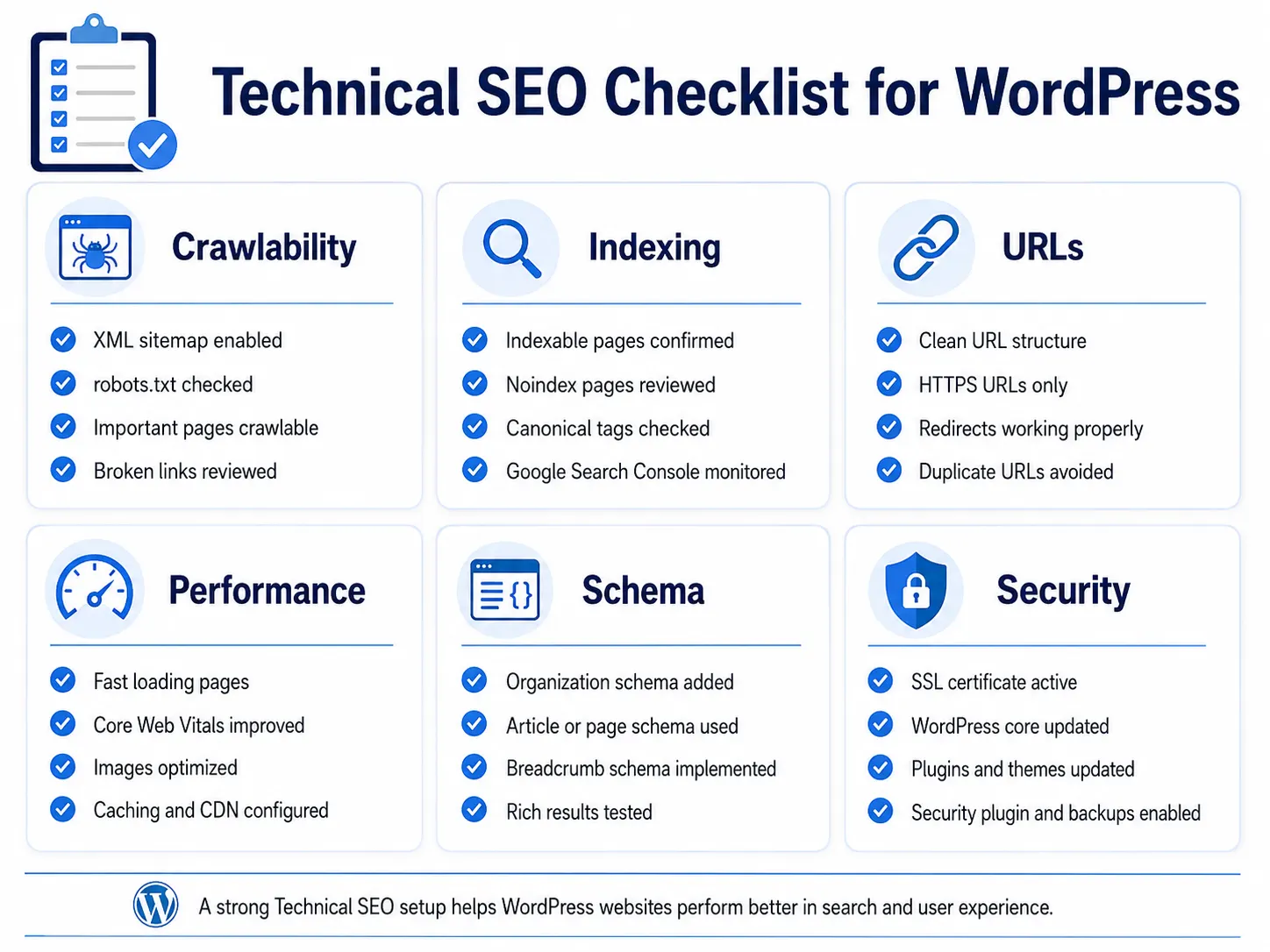
Table of Contents
- What Is Technical SEO?
- Quick WordPress Technical SEO Checklist
- Back Up the Website
- Use Only One SEO Plugin
- Check Search Engine Visibility
- Enable HTTPS
- Select One Preferred Domain Version
- Configure Clean Permalinks
- Verify HTTP Status Codes
- Review Robots.txt
- Check Robots Meta Tags
- Create an XML Sitemap
- Clean the Sitemap
- Connect Google Search Console
- Inspect Important URLs
- Configure Canonical URLs
- Fix Duplicate URL Versions
- Use Correct Redirects
- Remove Redirect Chains
- Handle Deleted Pages Correctly
- Improve Website Architecture
- Make Internal Links Crawlable
- Add Breadcrumbs
- Control Archive Indexation
- Manage Pagination and Filters
- Check Mobile-First Indexing
- Verify JavaScript Content
- Improve Core Web Vitals
- Optimise Images
- Add Valid Structured Data
- Check Titles and Meta Descriptions
- Use Valid Heading Structure
- Configure International SEO
- Audit WooCommerce Technical SEO
- Protect Website Security
- Review Crawl Data
- Handle Website Migrations
- Monitor Technical SEO Regularly
- Final Checklist
- Frequently Asked Questions
- Conclusion
What Is Technical SEO?
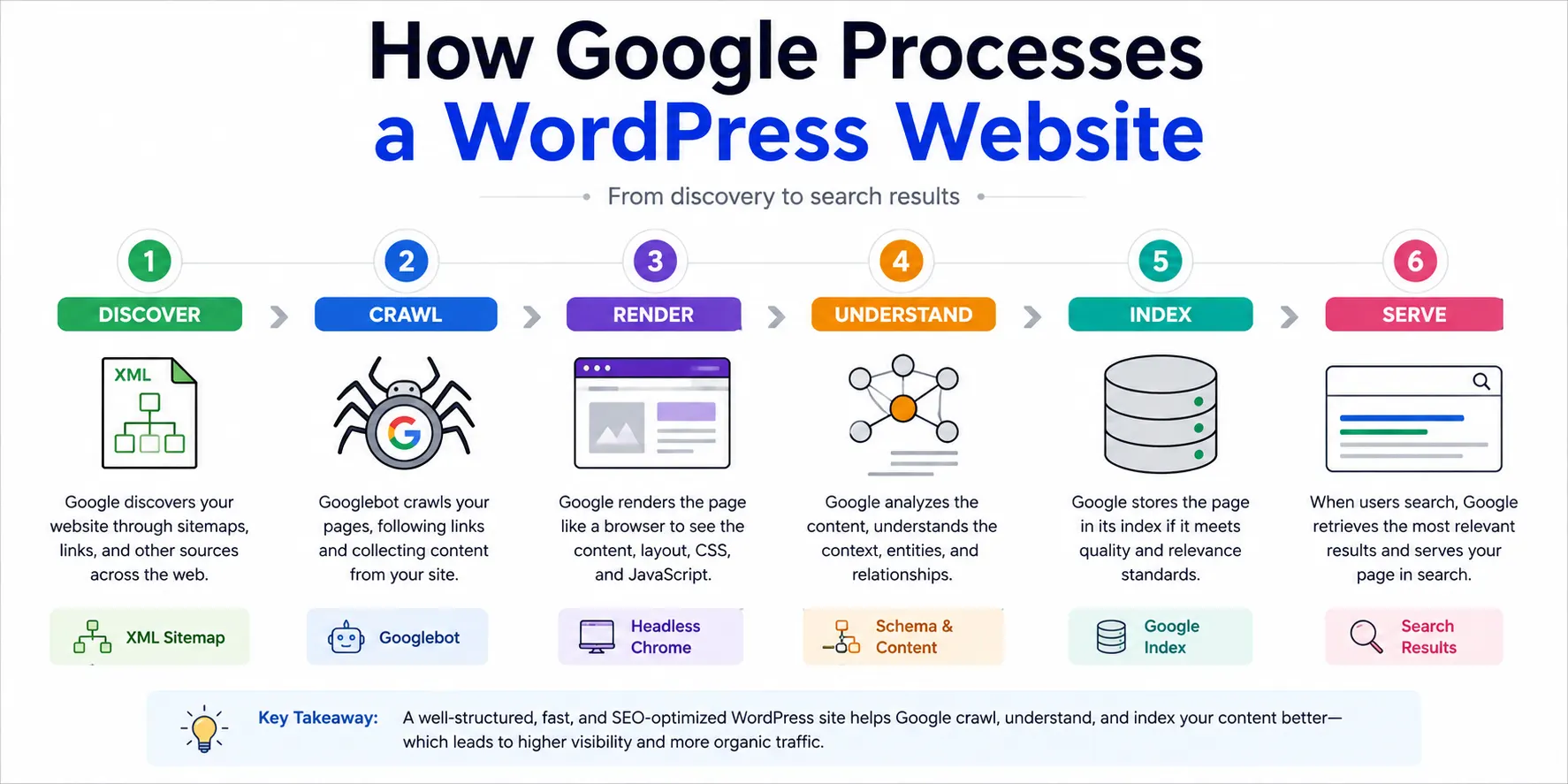
Technical SEO is the process of improving a website’s technical setup so that search engines can:
- Discover its URLs
- Access its files
- Crawl its pages
- Render its content
- Understand page relationships
- Identify preferred URLs
- Index appropriate pages
- Serve those pages in search results
It deals with the infrastructure and signals underneath the visible content.
Technical SEO includes:
- HTTP status codes
- XML sitemaps
- Robots.txt
- Robots meta tags
- Canonical URLs
- Redirects
- Internal linking
- Mobile accessibility
- JavaScript rendering
- Website performance
- Structured data
- Website security
- International targeting
- Indexation management
Technical SEO cannot guarantee rankings. It removes technical obstacles and helps search engines interpret the website more accurately.
Quick WordPress Technical SEO Checklist
| Area | Main Check |
|---|---|
| Search visibility | Website is not accidentally set to noindex |
| HTTPS | All public pages load securely |
| Preferred domain | One consistent HTTPS and www/non-www version |
| Permalinks | Clean, descriptive URLs |
| Status codes | Important pages return 200 |
| Robots.txt | Important pages and resources are crawlable |
| Robots meta | Index/noindex rules are intentional |
| XML sitemap | Opens correctly and contains preferred URLs |
| Search Console | Correct domain property verified |
| Canonicals | Every indexable page has the correct canonical |
| Redirects | Old URLs point directly to relevant new URLs |
| Internal links | Important pages are linked contextually |
| Mobile | Mobile content matches desktop content |
| Performance | Core Web Vitals and loading experience reviewed |
| Schema | Valid, relevant and visible-content-based |
| Security | No malware, hacked pages or unsafe resources |
| Monitoring | Indexing and crawl reports reviewed regularly |
1. Create a Backup and Staging Website
Never begin a technical SEO audit by changing the live website immediately.
Create:
- A complete database backup
- A complete files backup
- A restoration point
- A staging copy for testing
A staging website is especially important before changing:
- Permalinks
- Domain versions
- HTTPS settings
- Redirect rules
- SEO plugins
- Canonical settings
- Database entries
- CDN configuration
- JavaScript delivery
- Theme files
Important Staging Rule
The staging website should not be publicly indexed.
Use one or more of the following:
- Password protection
- Server-level authentication
- Noindex directive
- Restricted access
Password protection is generally stronger than relying only on robots.txt because robots.txt controls crawling rather than guaranteed removal from search.
2. Use Only One WordPress SEO Plugin
Use one main SEO plugin to manage:
- SEO titles
- Meta descriptions
- Robots directives
- Canonical URLs
- XML sitemaps
- Structured data
- Social metadata
- Redirects
- Breadcrumbs
DMRS Digital uses Rank Math SEO Free.
Do not run Rank Math, Yoast SEO and All in One SEO together. Multiple SEO plugins can generate duplicate:
- Canonical tags
- Meta descriptions
- Robots directives
- XML sitemaps
- Schema markup
- Open Graph tags
Recommended Rank Math Modules
Navigate to:
WordPress Dashboard → Rank Math SEO → Dashboard
Consider enabling:
- Sitemap
- Schema
- 404 Monitor
- Redirections
- Analytics
- Image SEO, if its behaviour matches your requirements
Rank Math’s setup process can generate an XML sitemap and configure essential website-level SEO settings.
Do not activate every module automatically. Enable only the features the website will actually use.
3. Check WordPress Search Engine Visibility
A surprisingly common WordPress SEO problem is leaving the website in “discourage search engines” mode after development.
Navigate to:
WordPress Dashboard → Settings → Reading
Find:
Search Engine Visibility
Make sure the following box is unchecked on the live website:
Discourage search engines from indexing this site
WordPress describes this setting as a request to search engines not to index the website. The Site Health screen also reports whether this option is active.
Also Check
- The homepage source does not contain
noindex - Important pages do not contain
noindex - Rank Math content-type settings are not globally set to noindex
- The hosting platform does not add an
X-Robots-Tag: noindexheader - CDN or security settings are not blocking Googlebot
- The website is not protected by a development password
Use Google Search Console’s URL Inspection tool to see whether Google detects an indexing restriction.
4. Enable HTTPS Across the Website
Every public business website should use HTTPS.
HTTPS helps protect information exchanged between visitors and the website, including:
- Contact-form information
- Login credentials
- Customer accounts
- Checkout data
- Personal information
WordPress Site Health recommends switching to HTTPS when the website is not already using it.
HTTPS Checklist
SSL certificate is valid
Certificate renews automatically
HTTP redirects to HTTPS
No important HTTP pages remain accessible
Internal links use HTTPS
Canonical tags use HTTPS
XML sitemap uses HTTPS
Image and script URLs use HTTPS
Search Console property includes the correct version
No mixed-content warnings appear
Fix Mixed Content
Mixed content occurs when an HTTPS page loads some files through HTTP.
Check:
- Images
- CSS
- JavaScript
- Fonts
- Embedded videos
- Tracking scripts
- Old page-builder content
Do not simply install several SSL-fixing plugins. Correct the website URL settings, database URLs and server redirects properly.
5. Select One Preferred Domain Version
A website may be accessible through several versions:
http://example.comhttp://www.example.comhttps://example.comhttps://www.example.com
Only one version should be treated as the preferred public version.
For example:
https://example.com
The other versions should redirect directly to it.
Check Consistency Across
- WordPress Address
- Site Address
- Internal links
- Canonical tags
- Sitemap URLs
- Structured data
- Social metadata
- CDN settings
- Search Console
- Analytics
- Backlinks under your control
Google uses several canonicalisation signals and generally prefers secure HTTPS URLs, but conflicting signals can cause Google to select a different canonical than the website owner intended.
6. Configure Clean WordPress Permalinks
Navigate to:
WordPress Dashboard → Settings → Permalinks
For most business and content websites, a clean post-name structure works well:
https://example.com/sample-post/
WordPress explains that permalinks create URLs that are easier for people and search engines to understand and share.
Good URL Practices
- Keep URLs short
- Use descriptive words
- Use lowercase letters
- Separate words with hyphens
- Avoid unnecessary dates
- Avoid random IDs where possible
- Avoid repeating categories and keywords
- Avoid changing published URLs without redirects
Clear URL
/technical-seo-checklist-wordpress/
Unclear URL
/?p=4827
Do Not Change Established URLs Casually
Changing the permalink structure of an established website can create:
- Broken internal links
- Broken backlinks
- 404 errors
- Redirect chains
- Temporary visibility changes
Create a redirect plan before changing existing URLs.
7. Verify Important HTTP Status Codes
Search engines and browsers use HTTP status codes to understand what happened when they requested a URL.
Important Codes
| Code | Meaning | Common Use |
| 200 | Successful response | Live indexable page |
| 301 | Permanent redirect | URL permanently moved |
| 302 | Temporary redirect | Temporary move |
| 307 | Temporary redirect | Temporary server-side redirect |
| 308 | Permanent redirect | Permanent move |
| 404 | Not found | Page does not exist |
| 410 | Gone | Page intentionally removed |
| 500 | Server error | Server failed |
| 503 | Temporarily unavailable | Maintenance or overload |
Google’s minimum technical requirements state that an indexable page should work and return an HTTP 200 success status.
Audit Important Pages
Check the status of:
- Homepage
- Main service pages
- Contact page
- About page
- Blog posts
- Category pages
- Product pages
- Sitemap
- Robots.txt
- Important media files
A page that visually appears normal can still return an incorrect status code.
8. Review the Robots.txt File
The robots.txt file is normally available at:
https://example.com/robots.txt
It tells crawlers which URLs they may or may not request.
Google explains that robots.txt is primarily a crawling-control mechanism. It should not be treated as a reliable method for keeping a public URL out of Google Search. Use noindex or access protection when removal from indexing is required.
Check That Robots.txt Does Not Block
- Main CSS files
- JavaScript required for rendering
- Images needed for understanding pages
- Service pages
- Blog articles
- Product pages
- Category pages intended for search
- Sitemap
- Important API resources required to render content
Typical WordPress Rules
A simple WordPress robots.txt may include:
User-agent: *
Disallow: /wp-admin/
Allow: /wp-admin/admin-ajax.php

Sitemap: https://example.com/sitemap_index.xml
This is only an example. The correct rules depend on the website’s structure.
Do Not Use Robots.txt to Hide
- Confidential information
- Customer data
- Private documents
- Staging websites
- Admin tools requiring real security
A robots.txt file is publicly accessible and does not provide authentication.
9. Check Robots Meta Tags and X-Robots-Tag Headers
Robots meta tags control page-level indexing and search-result behaviour.
Common directives include:
indexnoindexfollownofollownosnippetmax-snippetnoimageindex
Google’s default behaviour is effectively index, follow, so those values do not normally need to be written explicitly.
Important Rule
For Google to detect a noindex directive, it must be allowed to crawl the page.
If robots.txt blocks the URL, Google may not see the noindex tag. Google specifically warns that a page blocked by robots.txt can sometimes remain visible through its URL or external signals because the crawler could not access the noindex instruction.
Check Noindex Settings On
- Posts
- Pages
- Products
- Categories
- Tags
- Author archives
- Date archives
- Search-result pages
- Attachment pages
- Thank-you pages
- Account pages
- Cart and checkout
- Filtered URLs
In Rank Math, inspect:
Rank Math SEO → Titles & Meta
Also inspect the Advanced tab on individual pages where custom robots settings may have been added. Rank Math allows robots settings to be configured by content type.
10. Create a Valid XML Sitemap
An XML sitemap provides search engines with information about the URLs the website considers important.
Google uses sitemaps to discover and crawl website files more efficiently, although submitting a sitemap does not guarantee that every included URL will be indexed.
WordPress has provided native XML sitemap functionality since WordPress 5.5. SEO plugins can replace or expand this functionality.
Rank Math Sitemap URL
Rank Math normally creates the sitemap index at:
https://example.com/sitemap_index.xml
The settings are available under:
Rank Math SEO → Sitemap Settings
Sitemap Checklist
Sitemap loads with HTTP 200
Sitemap is not blank
Sitemap contains HTTPS URLs
Sitemap uses the preferred domain
Important content types are included
Noindex pages are excluded
Redirected URLs are excluded
Broken URLs are excluded
Non-canonical URLs are excluded
Sitemap is referenced in robots.txt
Sitemap is submitted in Search Console
Do not run a separate sitemap plugin when Rank Math already generates the required sitemap.
11. Include Only Clean, Indexable URLs in the Sitemap
A sitemap should ideally include URLs that are:
- Canonical
- Indexable
- Useful
- Accessible
- Returning HTTP 200
Do not intentionally include:
- 404 pages
- Redirecting URLs
- Noindex pages
- Duplicate parameter URLs
- Staging URLs
- Search-result pages
- Cart and checkout pages
- Account pages
- Low-value filter combinations
Rank Math generally excludes noindex URLs and pages with custom canonicals pointing elsewhere from its sitemap.
Review Content Types Separately
Check:
- Post sitemap
- Page sitemap
- Product sitemap
- Product-category sitemap
- Category sitemap
- Author sitemap
- Custom post-type sitemaps
Do not index every taxonomy simply because WordPress creates it.
12. Connect Google Search Console
Google Search Console is essential for monitoring how Google crawls, indexes and serves the website.
Create and verify a Domain property where possible because it covers:
- HTTP
- HTTPS
- www
- Non-www
- Subdomains
Submit the Sitemap
Open:
Search Console → Sitemaps
Submit:
sitemap_index.xml
Review Important Reports
- Performance
- Page indexing
- Sitemaps
- Core Web Vitals
- HTTPS
- Enhancements
- Manual actions
- Security issues
- Links
- Crawl statistics
Search Console can help identify page-level indexing problems, test live URLs, request crawling and show the resources Google loaded for a page.
Do not rely only on the site: search operator to determine whether an important page is indexed. Google considers URL Inspection more reliable for page-level debugging.
13. Inspect Important URLs Individually
Open:
Search Console → URL Inspection
Inspect:
- Homepage
- Main service pages
- Recently published posts
- Product pages
- Pages losing traffic
- Pages excluded from indexing
- Pages with canonical problems
Check
- Is the URL on Google?
- Is indexing allowed?
- Was crawling permitted?
- What canonical did the owner declare?
- What canonical did Google select?
- When was the page last crawled?
- Was the page successfully fetched?
- Is the page mobile-friendly?
- Did Google load the required resources?
- Is structured data detected?
Use Test Live URL after fixing a page.
Google notes that Search Console may continue displaying an old error until the page is crawled again.
Request indexing for important new or corrected pages, but do not repeatedly submit unchanged URLs.
14. Configure Correct Canonical URLs
A canonical tag tells search engines which URL is the preferred version when multiple URLs contain identical or substantially similar content.
Example:
<link rel="canonical" href="https://example.com/preferred-page/" />Most indexable WordPress pages should have a self-referencing canonical unless another URL is intentionally preferred.
Google treats redirects and canonical tags as signals, but it may choose a different canonical when signals conflict.
Canonical Checklist
Homepage canonical uses the preferred domain
HTTPS is used
Canonical URL returns 200
Canonical is indexable
Canonical is not blocked
Canonical is not redirected
Canonical is included in the sitemap
Internal links point to the canonical version
Only one canonical tag appears
Canonical does not point to an unrelated page
Common WordPress Canonical Errors
- Every page points to the homepage
- Paginated pages point incorrectly
- Product variations conflict
- HTTP and HTTPS canonicals differ
- Rank Math and another plugin both add canonicals
- Staging domain appears in canonicals
- Custom canonicals were copied between pages
Rank Math normally creates a self-referencing canonical for indexable pages unless a custom canonical is added.
15. Fix Duplicate URL Versions
WordPress can create multiple URLs that display similar content.
Potential duplicates include:
- HTTP and HTTPS
- www and non-www
- URLs with tracking parameters
- Print versions
- Attachment pages
- Author archives
- Date archives
- Tag archives
- Product filters
- Sort-order parameters
- Uppercase and lowercase variations
- Trailing-slash variations
- AMP and non-AMP pages
- Pagination
Resolve Duplicates Through
- Consistent internal links
- Correct canonical tags
- Permanent redirects
- Noindex where appropriate
- Sitemap cleanup
- URL-parameter management
- Archive settings
- Plugin configuration
Do not block a duplicate URL in robots.txt before Google can see its canonical or noindex instruction.
16. Use Correct Permanent and Temporary Redirects
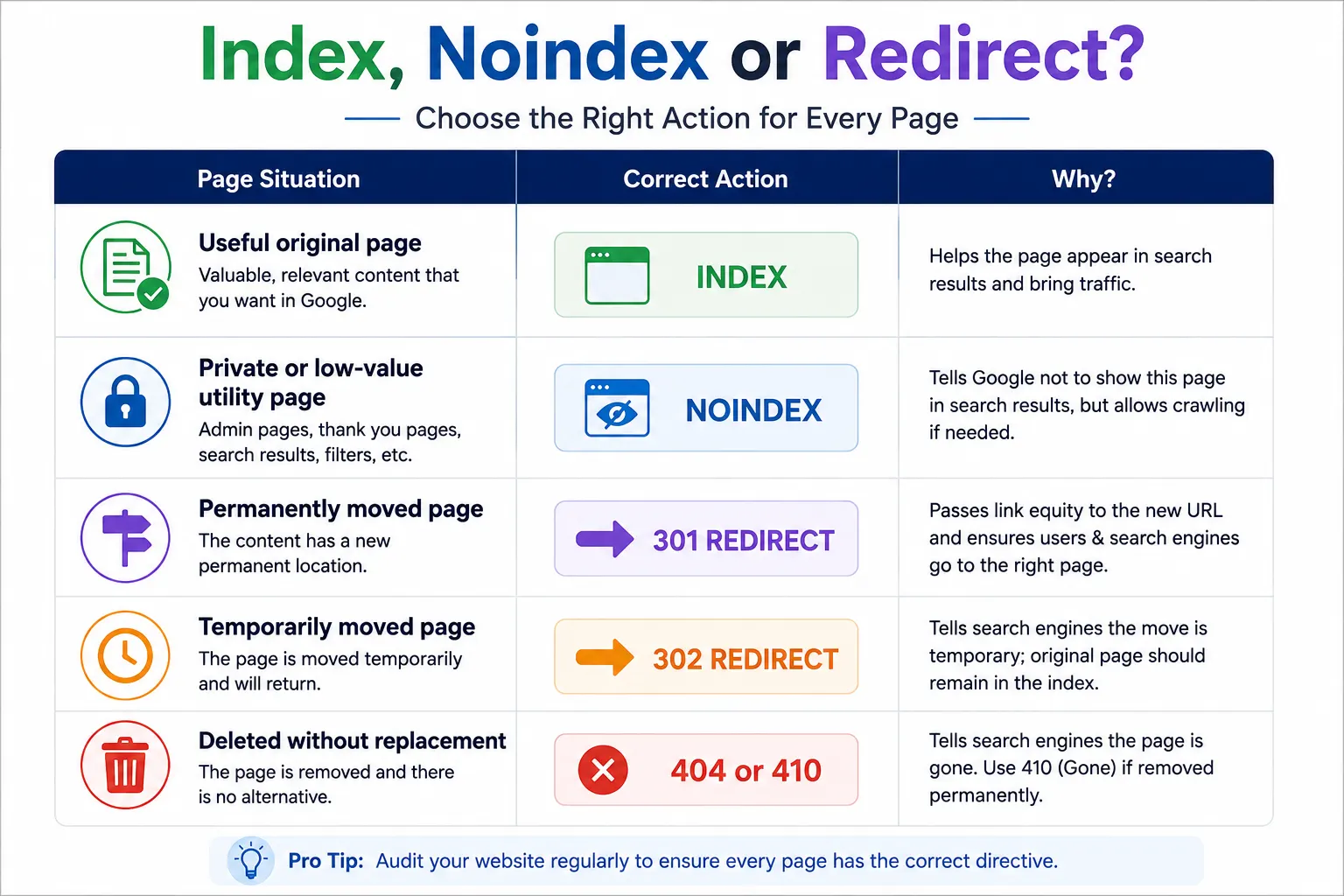
Use a permanent redirect when a URL has permanently moved:
- 301
- 308
Use a temporary redirect when the move is genuinely temporary:
- 302
- 307
Google recommends permanent server-side redirects when a URL has permanently changed.
Use 301 Redirects When
- A page slug changes
- Two pages are merged
- A product receives a permanent replacement
- HTTP redirects to HTTPS
- www redirects to non-www
- A website moves to another domain
- Old campaign URLs have permanent replacements
Use Temporary Redirects When
- A page is under short-term maintenance
- A service is temporarily unavailable
- An A/B test sends visitors to a temporary version
Do not redirect every deleted page to the homepage. Redirect only when a relevant replacement exists.
17. Remove Redirect Chains and Loops
A redirect chain occurs when one URL redirects through several intermediate URLs.
Example:
Page A → Page B → Page C → Page D
Change it to:
Page A → Page D
Redirect chains:
- Add loading time
- Waste crawling resources
- Complicate migrations
- Create unnecessary failure points
Google recommends redirecting directly to the final destination and keeping chains as short as possible.
Also Check for Redirect Loops
A loop occurs when:
Page A → Page B → Page A
This prevents visitors and crawlers from reaching the content.
Review redirects after:
- Domain migrations
- HTTPS activation
- Permalink changes
- Plugin changes
- CDN activation
- Server migrations
18. Handle Deleted Pages Correctly
Not every deleted page requires a redirect.
Use a Relevant 301 Redirect When
- The content moved
- A similar replacement exists
- Two pages were merged
- An old product has a direct replacement
Use 404 or 410 When
- The page has no replacement
- The content was intentionally removed
- The URL was generated by spam
- The old product should not be redirected elsewhere
A helpful custom 404 page should include:
- Clear error message
- Website navigation
- Search option
- Popular pages
- Contact link
However, a custom-designed 404 page must still return the actual HTTP 404 status. A page that says “not found” while returning 200 creates a soft-404 problem.
19. Improve Website Architecture
Website architecture determines how pages are organised and connected.
A clear structure helps both visitors and crawlers understand relationships between topics.
Example:
Home
├── Services
│   ├── WordPress Development
│   ├── Technical SEO
│   └── Website Speed Optimisation
├── Learn
│   ├── Web Development
│   ├── SEO & Search
│   └── AI & Automation
└── Contact
Architecture Best Practices
- Keep important pages close to the homepage
- Group related content logically
- Use clear categories
- Avoid orphan pages
- Link supporting articles to pillar pages
- Use consistent navigation
- Avoid creating hundreds of near-empty tags
- Keep URL structure manageable
This article should link naturally to the DMRS Digital WordPress website development guide and Learn Hub.
20. Make Internal Links Crawlable
Google recommends using crawlable links so that it can discover other website pages.
A standard crawlable link uses an HTML anchor and a valid destination.
<a href="https://example.com/technical-seo/">Technical SEO</a>Internal-Link Checklist
Important pages receive internal links
Links use relevant anchor text
Links point directly to final URLs
Broken links are removed
Links are not dependent only on JavaScript interaction
Orphan pages are identified
Navigation works on mobile
Related articles are connected
Breadcrumbs are linked
Important links are not hidden from crawlers
Avoid repeatedly using vague anchor text such as:
- Click here
- Read more
- Learn more
Use descriptive text where natural.
21. Add Breadcrumb Navigation
Breadcrumbs show visitors where a page sits within the website hierarchy.
Example:
Home → SEO & Search → Technical SEO Checklist
Benefits include:
- Easier navigation
- Clearer website hierarchy
- Stronger internal linking
- Better context for search engines
Use:
- Visible breadcrumb navigation
- BreadcrumbList structured data
- Consistent category relationships
Do not display one breadcrumb path while schema describes a different hierarchy.
Rank Math can provide breadcrumb functionality, but the theme may also generate breadcrumbs. Avoid duplicate systems.
22. Control WordPress Archive Indexation
WordPress can generate archive pages for:
- Categories
- Tags
- Authors
- Dates
- Post formats
- Products
- Product categories
- Product tags
- Custom taxonomies
Some archives are useful landing pages. Others create thin or duplicate content.
Consider Indexing an Archive When It
- Serves a clear search intent
- Contains useful introductory content
- Organises multiple relevant posts or products
- Has unique title and description
- Receives internal links
- Provides value beyond a list of links
Consider Noindex When It
- Contains one or no posts
- Duplicates another archive
- Has no independent purpose
- Creates thousands of thin pages
- Exists only for internal organisation
Do not automatically noindex every category. Strong category hubs can support topical authority.
In Rank Math, archive indexation can be configured under:
Rank Math SEO → Titles & Meta
23. Manage Pagination, Search Pages and Filters
Large blogs and ecommerce websites may generate many paginated and filtered URLs.
Examples:
/page/2/?orderby=price?filter_colour=blue?min_price=500- Internal search-result URLs
Potential Problems
- Crawl-space expansion
- Duplicate combinations
- Thin pages
- Conflicting canonicals
- Wasted server resources
- Filters appearing in the sitemap
- Search pages entering the index
Recommended Approach
- Keep useful category pagination crawlable
- Avoid blocking resources needed to render pages
- Noindex internal search-result pages
- Prevent uncontrolled filter combinations from becoming indexable
- Use canonical tags carefully
- Link to important category pages directly
- Keep filtered URLs out of XML sitemaps
- Audit WooCommerce query parameters
The correct implementation depends on catalogue size and whether filtered pages have independent search demand.
24. Check Mobile-First Indexing
Google primarily evaluates the mobile version of a page for indexing.
The mobile version should contain the same essential:
- Main content
- Headings
- Images
- Internal links
- Structured data
- Robots directives
- Canonical information
Google advises website owners to maintain equivalent primary content and robots directives between mobile and desktop versions. Content that appears only after a user interaction may not be discovered reliably.
Mobile Technical Checklist
Main content is present
Important links are available
Mobile menu works
Buttons are usable
Forms work
Images load properly
Structured data matches desktop
Canonical tags are correct
No mobile-only noindex tag exists
Text is readable
Intrusive pop-ups are controlled
Responsive design is generally easier to maintain than separate desktop and mobile URLs.
25. Verify That Google Can Render JavaScript Content
WordPress themes, page builders and plugins can depend heavily on JavaScript.
Problems arise when important content:
- Appears only after clicking
- Loads through a failed API
- Is blocked by robots.txt
- Requires login
- Is inserted after a long delay
- Produces a JavaScript error
- Exists only in the browser but not in rendered output
Use Search Console’s live test to see how Google renders the page.
Check
- Main text
- Navigation
- Product information
- Reviews
- Internal links
- Images
- Canonical tag
- Robots directives
- Structured data
Do not place an initial noindex tag in the HTML and rely on JavaScript to remove it. Google warns that it may skip rendering after detecting noindex, meaning the JavaScript change might never be processed.
Server-rendered or immediately accessible primary content is generally safer than making essential content dependent on user interaction.
26. Improve Core Web Vitals and Website Performance
Core Web Vitals evaluate important areas of real-world user experience.
| Metric | Measures | Good Target |
| LCP | Main content loading | 2.5 seconds or less |
| INP | Interaction responsiveness | 200 milliseconds or less |
| CLS | Visual stability | Less than 0.1 |
Google recommends achieving good Core Web Vitals for users, but good scores alone do not guarantee rankings.
WordPress Performance Checklist
Hosting resources are sufficient
Page caching is enabled
Browser caching is configured
Images are compressed
Hero image is prioritised
Offscreen images are lazy-loaded
CSS is reduced
Non-critical JavaScript is deferred
Third-party scripts are reviewed
Fonts are optimised
Database bloat is controlled
CDN is configured correctly
Mobile performance is tested
Read the detailed DMRS Digital guide on how to build a professional WordPress website for development and performance fundamentals.
27. Optimise Images for Technical SEO
Image optimisation affects:
- Loading speed
- LCP
- CLS
- Accessibility
- Image search
- Mobile data use
Image Checklist
- Use descriptive filenames
- Resize before uploading
- Compress images
- Use WebP or AVIF where suitable
- Add descriptive ALT text to meaningful images
- Leave decorative ALT attributes empty
- Define width and height
- Use responsive image sizes
- Lazy-load offscreen images
- Do not lazy-load the likely LCP image
- Avoid embedding text-heavy images where HTML text is possible
- Keep image URLs accessible to crawlers
ALT Text Rule
ALT text should explain the image’s purpose or visible information.
Good:
Technical SEO checklist for WordPress websites showing crawling, indexing, schema and performance checks
Weak:
SEO image
Do not stuff the focus keyword into every image ALT attribute.
28. Add Accurate Structured Data
Structured data helps search engines understand the type and meaning of visible page content.
Google currently supports JSON-LD, Microdata and RDFa, with JSON-LD commonly recommended because it is easier to implement and maintain. Structured data must represent content visible to users and does not guarantee that a rich result will appear.
Useful Schema Types for WordPress
| Page | Possible Schema |
| Homepage | Organization, WebSite |
| Blog post | Article or BlogPosting |
| Service page | Service |
| Product page | Product |
| Local business page | LocalBusiness subtype |
| Event page | Event |
| Recipe page | Recipe |
| Breadcrumb navigation | BreadcrumbList |
Schema Checklist
Main schema matches the page
Required properties are present
Information is visible to visitors
Business name is consistent
Logo URL works
Image URL works
Dates are accurate
Prices and availability are current
No fake ratings are added
No duplicate schema plugins conflict
Rich Results Test passes
Search Console enhancement reports are reviewed
Do not add review markup for reviews the website cannot verify or display.
29. Check SEO Titles and Meta Descriptions
Titles and meta descriptions are often classified as on-page SEO, but sitewide template problems can become technical issues.
Check for
- Missing SEO titles
- Duplicate titles
- Titles generated from the wrong field
- Staging-brand names
- Extremely long templates
- Empty meta descriptions
- Duplicate descriptions
- Archive-title conflicts
- Product titles overwritten by plugins
Title Checklist
- Primary topic is clear
- Each important page has a unique title
- Business name is used naturally
- Page title matches visible content
- No keyword stuffing
- No duplicate plugin output
Meta Description Checklist
- Unique for important pages
- Accurate
- Useful to searchers
- Contains the focus keyword naturally
- Does not make false promises
Google may rewrite title links and snippets based on the query and page content, so metadata should be treated as a strong recommendation rather than guaranteed display text.
30. Use Clear Heading Structure and Valid HTML
Each page should have a logical heading hierarchy.
Example:
- H1: Main page title
- H2: Major sections
- H3: Subsections
- H4: Supporting detail
Check
- One clear primary H1
- H1 matches the page subject
- Headings follow a logical sequence
- Headings are not used only for visual styling
- Important content is available in HTML
- Buttons are not used as fake headings
- Navigation is semantically clear
- Links contain valid destinations
- Duplicate H1s from themes or logos are corrected
Multiple H1 elements are technically possible in modern HTML, but one clear primary H1 usually makes WordPress templates easier to manage and audit.
31. Configure International and Multilingual SEO
International SEO becomes important when a website targets multiple:
- Languages
- Countries
- Regions
- Currencies
Google recommends using separate URLs for different language versions rather than changing all content only through cookies or browser settings.
Possible structures include:
example.com/en/example.com/fr/fr.example.comexample.fr
Hreflang Checklist
- Each language page references its alternatives
- Each alternative links back
- Language and region codes are valid
- Canonicals do not conflict with hreflang
- URLs return HTTP 200
- Pages contain genuinely localised content
- An
x-defaultversion is used where appropriate - Language pages are included in sitemaps
- Automatic redirection does not block crawlers
Google uses hreflang to understand localised versions of similar content, but it does not use hreflang or the HTML language attribute alone to determine the page’s language.
Do not create thin, machine-replaced country pages merely by changing city or country names.
32. Audit WooCommerce Technical SEO
WooCommerce websites produce additional technical SEO challenges.
Check Product URLs
- Product page returns 200
- Product is indexable
- Canonical points to itself
- Product appears in the sitemap
- Out-of-stock handling is intentional
- Product variations are controlled
- Deleted products have relevant redirects where appropriate
Check Category and Filter URLs
- Important product categories are indexable
- Thin tags are noindexed or improved
- Filter combinations do not create unlimited indexable URLs
- Sort parameters stay out of the sitemap
- Pagination remains usable
- Internal search pages are noindexed
Check Product Schema
- Product name is accurate
- Price matches the visible price
- Currency is correct
- Availability is current
- Images work
- Ratings are genuine
- Merchant details are accurate
Check Dynamic Pages
The following pages should normally not appear in search results:
- Cart
- Checkout
- My Account
- Order confirmation
- Wishlist, depending on implementation
Test caching, canonical and noindex settings carefully on ecommerce pages.
33. Protect Website Security and Search Reputation
A hacked WordPress website can generate:
- Spam pages
- Japanese keyword spam
- Casino pages
- Fake product pages
- Malicious redirects
- Phishing forms
- Hidden links
- Search-result warnings
Security Checklist
- WordPress core is updated
- Themes are updated
- Plugins are updated
- Unused plugins are deleted
- Nulled software is never installed
- Strong passwords are used
- Two-factor authentication is considered
- Login attempts are controlled
- Backups are tested
- File changes are monitored
- Malware scans are performed
- Search Console Security Issues is reviewed
- Unrecognised administrators are removed
- Hosting access is protected
Google Search Console’s Security Issues report can identify some hacked or deceptive pages detected on the website.
A security plugin does not replace secure hosting, updates, backups and access control.
34. Review Crawl Statistics and Server Logs
For larger or technically complex websites, crawl data can reveal problems that visual inspection misses.
Open:
Search Console → Settings → Crawl Stats
Review:
- Total crawl requests
- Response codes
- File types
- Googlebot type
- Average response time
- Crawl spikes
- Server errors
- Host availability
Server-Log Analysis Can Show
- URLs crawlers request most often
- Broken URLs receiving repeated requests
- Redirect chains
- Search-engine bot activity
- Parameter crawling
- Slow response patterns
- Orphan URLs
- Fake bots
- Crawl waste
Log analysis is especially useful for:
- Large publishers
- Ecommerce websites
- Marketplaces
- Multilingual websites
- Websites with thousands of URLs
Small business websites may not require advanced log analysis every month, but Crawl Stats should still be reviewed when indexing or server problems appear.
35. Handle Website Migrations Carefully
A website migration may involve:
- HTTP to HTTPS
- www to non-www
- New domain
- New hosting
- New CMS
- New permalink structure
- Redesign
- Category restructuring
Migration Checklist
Before Migration
- Crawl the current website
- Export all important URLs
- Record titles and canonicals
- Record current rankings and traffic
- Map old URLs to new URLs
- Create backups
- Prepare redirect rules
- Test on staging
- Preserve important content
- Verify analytics and Search Console access
During Migration
- Apply direct 301 redirects
- Keep internal links on new URLs
- Update canonical tags
- Update sitemap
- Update robots.txt
- Preserve structured data
- Maintain mobile content
- Check HTTPS
- Test important forms
After Migration
- Submit the new sitemap
- Inspect important URLs
- Monitor 404 errors
- Monitor indexing
- Check redirect chains
- Review traffic
- Keep old redirects active
- Update important backlinks under your control
Google recommends permanent server-side redirects for permanent moves and advises avoiding unnecessary redirect chains.
Do not redesign, change every URL, change hosting and rewrite all content simultaneously unless the migration is carefully controlled.
Recommended Rank Math Technical SEO Setup
The following provides a practical starting configuration. Individual website requirements may differ.
Rank Math Dashboard
Enable as needed:
- Analytics
- 404 Monitor
- Redirections
- Schema
- Sitemap
- Link Counter
Titles & Meta
Review:
- Global meta
- Posts
- Pages
- Products
- Categories
- Tags
- Authors
- Miscellaneous pages
Confirm whether each content type should be:
- Index
- Noindex
- Included in sitemap
- Assigned a default schema type
Sitemap Settings
Usually include:
- Posts
- Pages
- Products, when applicable
- Important categories
- Important product categories
Review before including:
- Tags
- Author archives
- Product tags
- Custom taxonomies
- Attachments
General Settings
Review:
- Links
- Breadcrumbs
- Webmaster tools
- Robots.txt
- 404 Monitor
- Redirections
Do not modify advanced settings simply to increase a plugin score.
Complete Technical SEO Audit Order
Follow this sequence to avoid wasting time on minor issues while major accessibility problems remain.
Phase 1: Access and Indexing
- Search visibility
- HTTPS
- Preferred domain
- HTTP status codes
- Robots.txt
- Robots meta
- Sitemap
- Search Console
- Canonicals
Phase 2: URL Control
- Duplicate URLs
- Redirects
- Redirect chains
- Broken pages
- Archives
- Filters and parameters
Phase 3: Architecture and Rendering
- Internal links
- Website hierarchy
- Breadcrumbs
- Mobile content
- JavaScript rendering
Phase 4: Quality and Performance
- Core Web Vitals
- Images
- Structured data
- Titles and descriptions
- Heading structure
Phase 5: Advanced Checks
- International SEO
- WooCommerce
- Security
- Crawl statistics
- Server logs
- Migration history
Phase 6: Monitoring
- Indexing reports
- Performance reports
- Security reports
- Monthly audit
Final WordPress Technical SEO Checklist
Crawlability and Indexation
Search-engine visibility is enabled
Important URLs return 200
Robots.txt does not block important pages
Important pages do not contain noindex
CSS and JavaScript resources are accessible
XML sitemap works
Sitemap contains clean URLs
Sitemap is submitted in Search Console
Important pages are internally linked
URL Inspection tests pass
URLs and Canonicals
One HTTPS domain version is used
Permalinks are clear
Canonicals are accurate
Duplicate versions are controlled
Redirects point directly to final URLs
Redirect chains are removed
Broken URLs return correct codes
Deleted pages are handled properly
Parameter URLs are controlled
Website Structure
Important pages are near the homepage
Categories are useful
Thin tags are controlled
Orphan pages are fixed
Breadcrumbs work
Internal links use descriptive anchors
Mobile navigation works
Pagination is crawlable
Performance and Mobile
Core Web Vitals are monitored
Images are compressed
Hero image is prioritised
Offscreen images are lazy-loaded
JavaScript is controlled
Mobile content matches desktop
Primary content does not require interaction
Forms and buttons work on mobile
Hosting response time is acceptable
Structured Data and Metadata
Main schema matches visible content
Schema has no critical errors
Organisation details are consistent
Titles are unique
Meta descriptions are useful
Heading hierarchy is logical
Image ALT text is descriptive
No duplicate SEO-plugin output exists
Security and Monitoring
WordPress is updated
Plugins and themes are updated
Backups work
No nulled software is installed
Search Console security reports are clean
Crawl statistics are reviewed
404 errors are monitored
Redirects are monitored
Sitemap is checked after updates
A technical audit is completed regularly
Frequently Asked Questions
What is a technical SEO checklist?
A technical SEO checklist is a structured list of checks used to confirm that search engines can access, crawl, render, understand and index the correct website pages.
It covers areas such as robots.txt, XML sitemaps, canonical tags, redirects, status codes, performance, mobile accessibility and structured data.
Is WordPress technically SEO-friendly?
WordPress provides a strong foundation, including editable permalinks and native XML sitemap functionality. However, themes, plugins, hosting, configuration and content architecture can still create serious technical SEO problems.
Which SEO plugin is best for WordPress?
Several established plugins can manage core SEO settings. DMRS Digital uses Rank Math SEO Free.
The most important rule is to use one main SEO plugin and configure it correctly rather than activating multiple competing SEO plugins.
Does an XML sitemap guarantee indexing?
No. A sitemap helps search engines discover important URLs, but Google does not guarantee crawling or indexing merely because a URL appears in the sitemap.
Should all WordPress pages be indexed?
No.
Cart, checkout, account, internal search, thin tags, duplicate filters and private utility pages generally do not need to appear in search results.
Index pages that provide independent value to searchers.
Should robots.txt be used to remove a page from Google?
No. Robots.txt controls crawling rather than guaranteed removal from indexing.
Allow Google to crawl the page and use noindex when the page should be removed from search, or protect confidential content with authentication.
What is the difference between noindex and disallow?
Disallow in robots.txt asks crawlers not to request a URL.
Noindex asks search engines not to include a crawled page in their index.
A page must generally be crawlable for Google to detect its noindex directive.
Does every page need a canonical tag?
Most indexable pages should have a canonical URL. In many cases, this will be a self-referencing canonical pointing to the page itself.
Duplicate or similar pages may point to the preferred version.
How often should technical SEO be audited?
A basic audit should be completed:
- Monthly for active websites
- After major plugin or theme updates
- After URL changes
- After a redesign
- After a hosting migration
- After HTTPS or CDN changes
- When organic traffic drops
- When Search Console reports new errors
Does structured data improve rankings?
Structured data helps search engines understand page content and can make pages eligible for supported search features. It does not guarantee a rich result or higher rankings.
Is a 100 Rank Math score necessary?
No.
Rank Math provides useful optimisation guidance, but a perfect plugin score is not a ranking guarantee. Do not repeat keywords unnaturally or make harmful technical changes merely to increase the score.
Can technical SEO fix poor content?
No.
Technical SEO can help search engines access and understand content, but it cannot make weak, inaccurate or unhelpful content competitive.
Strong SEO requires:
- Useful content
- Clear search intent
- Technical accessibility
- Internal linking
- Authority
- Good user experience
- Ongoing improvement
Conclusion
A complete technical SEO checklist begins with one basic question:
Can search engines reliably access, understand and index the right version of every important page?
For a WordPress website, this requires more than installing an SEO plugin.
Website owners must regularly review:
- Search visibility
- HTTPS
- URL structure
- HTTP status codes
- Robots.txt
- Robots meta tags
- XML sitemaps
- Search Console
- Canonical URLs
- Redirects
- Internal links
- Mobile content
- Core Web Vitals
- Structured data
- Security
Start with crawlability and indexation. Then correct duplicate URLs, redirects and architecture. After that, improve performance, schema and ongoing monitoring.
A technically clean website gives useful content a stronger opportunity to be discovered, indexed and served to the right audience. It does not guarantee rankings, but it removes many common obstacles that prevent strong pages from performing properly.
DMRS Digital provides WordPress development, Technical SEO, website speed optimisation, Search Console setup and website performance audits for business and ecommerce websites.
Explore our digital growth and website services or contact DMRS Digital for a detailed Technical SEO review.
You can also explore more WordPress and SEO resources in the DMRS Digital Learn Hub.