12 Reasons Your WordPress Website Is Slow and How to Fix Them
A slow website can frustrate visitors before they even understand what your business offers.
Pages may take several seconds to appear, buttons may respond late, images may load one by one, or the entire page may move while a visitor is trying to click something. In other cases, the public website loads reasonably well, but the WordPress dashboard remains painfully slow.
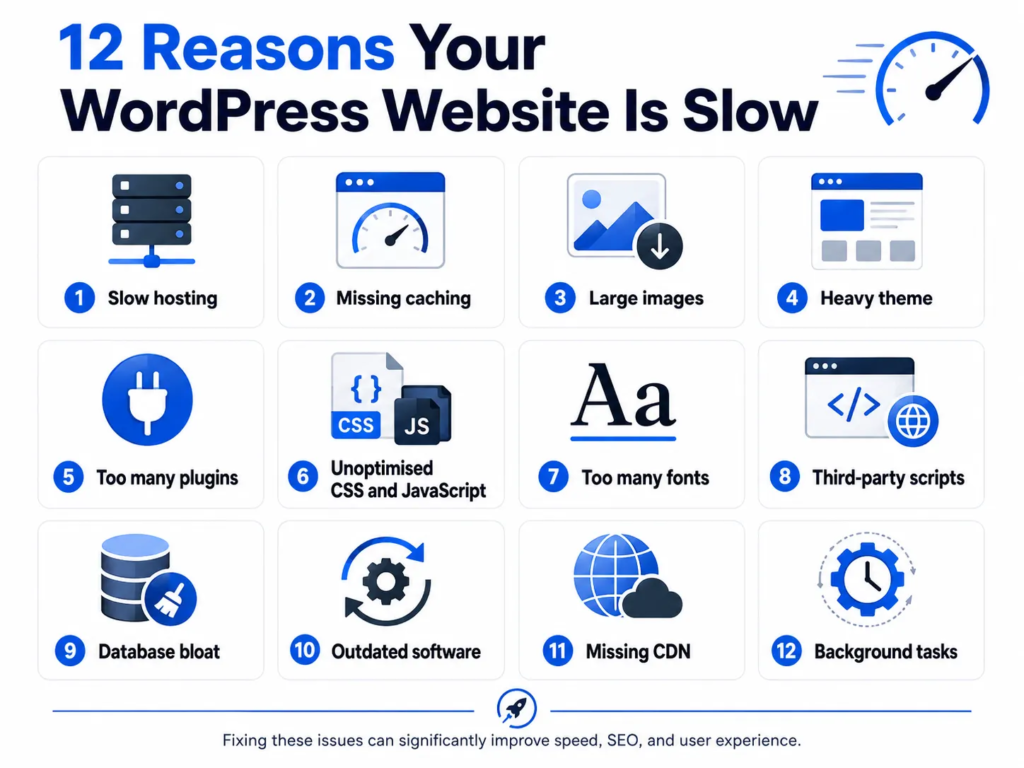
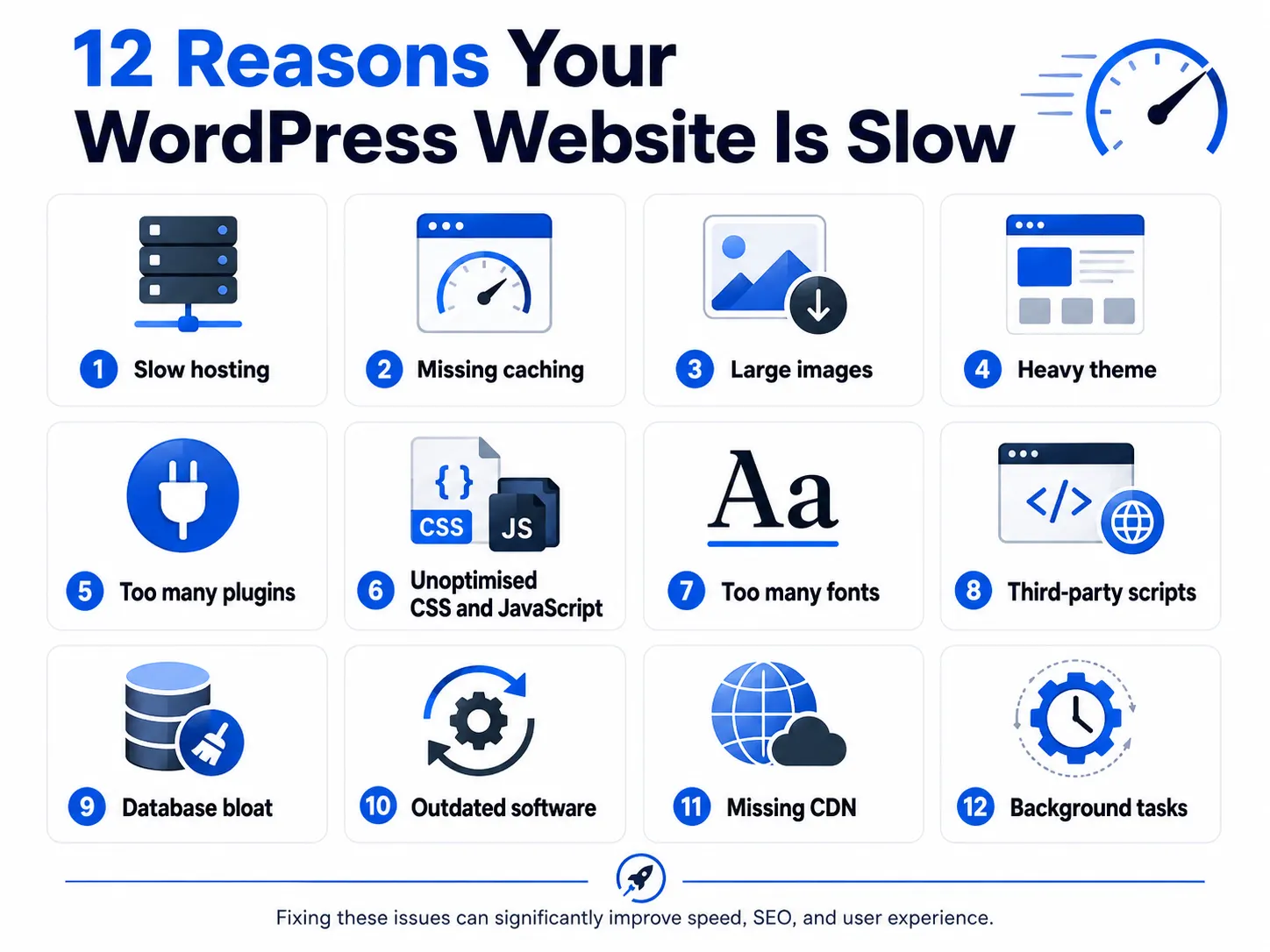
If you are trying to understand why WordPress website is slow, there is usually no single answer. Poor performance commonly results from a combination of weak hosting, oversized images, unnecessary plugins, missing caching, heavy themes, third-party scripts and an unoptimised database.
The good news is that most WordPress performance problems can be diagnosed and corrected without rebuilding the entire website.
This guide explains 12 common reasons a WordPress website becomes slow, how to identify each problem and the safest way to fix it.
Important: Create a complete website and database backup before changing plugins, themes, caching, PHP versions, database tables or server settings. Test major changes on a staging website whenever possible.
Table of Contents
- How to Check Whether Your WordPress Website Is Slow
- Important WordPress Speed Metrics
- Slow or Overloaded Web Hosting
- Missing or Incorrect Caching
- Large and Unoptimised Images
- Heavy Theme or Page Builder
- Too Many or Poorly Coded Plugins
- Render-Blocking CSS and JavaScript
- Too Many Fonts, Icons and Animations
- Third-Party Scripts and Embeds
- Bloated WordPress Database
- Outdated PHP, WordPress or Plugins
- Missing CDN
- WP-Cron, Background Tasks and Bot Traffic
- WooCommerce Speed Problems
- Correct Order for Fixing a Slow Website
- WordPress Speed Optimisation Checklist
- Frequently Asked Questions
- Conclusion
How to Check Whether Your WordPress Website Is Slow
Do not install optimisation plugins randomly before identifying the actual problem.
Start by testing different types of pages, including:
- Homepage
- Main service page
- Blog article
- Contact page
- Product page
- Product-category page
- Cart and checkout page
- Logged-in WordPress dashboard
A homepage may perform well while individual product or blog pages remain slow. Testing only one URL can therefore hide important problems.
Use Google PageSpeed Insights
Enter the complete page URL into Google PageSpeed Insights.
PageSpeed Insights can provide both laboratory and real-user field data when sufficient data is available. Laboratory data helps diagnose a specific test, while field data represents performance experienced by real Chrome users over time.
Test both:
- Mobile
- Desktop
Mobile performance usually requires greater attention because mobile devices and connections may have fewer resources than desktop systems.
Check Google Search Console
Open:
Google Search Console → Experience → Core Web Vitals
The Search Console Core Web Vitals report uses real-world usage data and groups similar URLs according to LCP, INP and CLS performance. A new or low-traffic website may not have enough data for the report.
Check WordPress Site Health
Inside WordPress, open:
Tools → Site Health
Review both:
- Status
- Info
Site Health may identify problems involving:
- PHP
- Database
- HTTPS
- Scheduled tasks
- Caching
- WordPress updates
- Plugin or theme updates
- Server configuration
- Autoloaded options
Do not assume that every recommendation has equal priority. Focus first on issues directly affecting speed, stability and security.
Important WordPress Speed Metrics
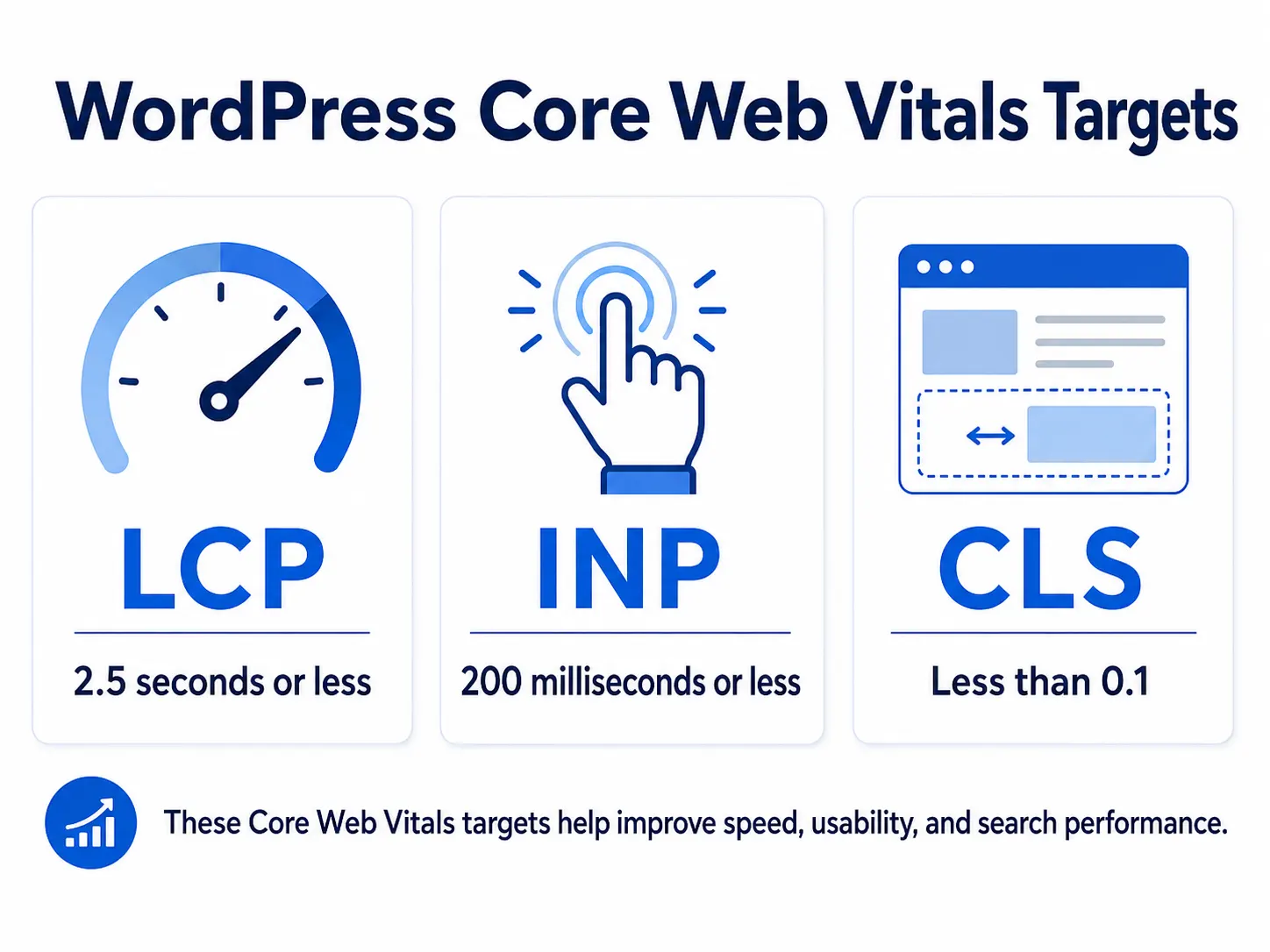
Google currently uses three Core Web Vitals metrics to evaluate important areas of page experience:
| Metric | What It Measures | Good Target |
|---|---|---|
| Largest Contentful Paint | Loading speed of the main visible content | 2.5 seconds or less |
| Interaction to Next Paint | Responsiveness after user interaction | 200 milliseconds or less |
| Cumulative Layout Shift | Visual stability while loading | Less than 0.1 |
These targets should be met at the 75th percentile of real user visits across mobile and desktop experiences.
Largest Contentful Paint
Largest Contentful Paint, or LCP, measures how quickly the largest visible content element appears.
The LCP element is frequently:
- Hero image
- Main heading
- Banner
- Product image
- Featured article image
- Large background image
Interaction to Next Paint
Interaction to Next Paint, or INP, measures how quickly the page responds after a user interacts with it.
Poor INP may be caused by:
- Excessive JavaScript
- Complex page builders
- Heavy menu scripts
- Chat widgets
- Product filters
- Sliders
- Third-party applications
Cumulative Layout Shift
Cumulative Layout Shift, or CLS, measures unexpected visual movement.
CLS problems can occur when:
- Images have no defined dimensions
- Fonts change after loading
- Ads appear above existing content
- Pop-ups move page elements
- Banners are inserted late
- Cookie notices change the layout
A perfect PageSpeed score should not become the only objective. Google states that Core Web Vitals are used by its ranking systems, but good scores do not guarantee top rankings, and chasing a perfect score only for SEO may not be the best use of resources.
The goal should be a fast, stable and usable website for real visitors.
1. Your Web Hosting Is Slow or Overloaded
Hosting is the foundation of WordPress performance.
Every time a visitor requests a page, the server may need to process PHP, retrieve information from the database, execute plugin functions and prepare the final HTML.
If the hosting server is overloaded or poorly configured, every other optimisation will have limited impact.
Common Hosting Problems
- Too many websites sharing limited resources
- Low CPU or memory limits
- Slow database server
- Outdated PHP
- Limited PHP workers
- No server-level caching
- Poor disk performance
- Server located far from the target audience
- Frequent resource throttling
- Slow DNS
- Weak support
How to Identify Slow Hosting
Possible signs include:
- High server response time
- Slow first page request
- Slow WordPress dashboard
- Website becomes slower during busy hours
- Frequent 503 or timeout errors
- WooCommerce checkout becomes slow
- Performance improves temporarily after restarting PHP
You can also ask your hosting company for:
- CPU usage
- Memory usage
- Entry-process limits
- PHP-worker limits
- Database load
- Resource throttling history
How to Fix It
- Remove unused websites from the hosting account.
- Update to a supported PHP version after testing compatibility.
- Enable server-level caching when available.
- Choose a server near your main audience.
- Upgrade from overloaded shared hosting when resource use justifies it.
- Use managed WordPress, cloud or VPS hosting for resource-intensive websites.
- Ask the host to investigate slow database queries and PHP processes.
As of August 2026, WordPress recommends PHP 8.3 or later, MariaDB 10.11 or later or MySQL 8.0 or later, together with HTTPS support. Older environments may still run WordPress, but WordPress warns that legacy versions have reached end of life and should be upgraded. Always verify theme and plugin compatibility before changing PHP.
2. Your Website Does Not Use Proper Caching
Without caching, WordPress may rebuild a page for each visitor.
It can repeatedly:
- Run PHP
- Query the database
- Execute plugin code
- Generate page content
- Send the completed response
Caching saves or temporarily stores reusable results so the same work does not need to be repeated for every request.
Main Types of WordPress Caching
Page Caching
Page caching saves a generated HTML version of a page and serves it directly to visitors.
Browser Caching
Browser caching allows static files such as images, CSS and JavaScript to remain stored in the visitor’s browser for an appropriate period.
Object Caching
Persistent object caching stores frequently requested database results using systems such as Redis or Memcached.
Server-Level Caching
Some hosting systems process caching before WordPress or its plugins are loaded.
Official WordPress performance documentation describes caching as one of the fastest ways to improve performance. It explains that page-cache plugins can serve static HTML files instead of repeatedly processing heavier PHP requests.
How to Fix It
- Enable one properly configured page-caching system.
- Use browser caching for static resources.
- Enable object caching when the website and hosting environment justify it.
- Use server-level caching if your hosting platform supports it.
- Exclude dynamic pages from full-page caching where required.
- Test forms, logins, carts and checkout after enabling caching.
Important Warning
Do not activate multiple full-page cache plugins together.
For example, running two different optimisation plugins with overlapping page caching, CSS generation and JavaScript delay features can cause:
- Broken layouts
- Login problems
- Missing updates
- Cart errors
- Conflicting cached files
- Difficult troubleshooting
Use one primary optimisation system and configure it correctly.
3. Your Images Are Too Large
Images are one of the most common reasons a WordPress page becomes unnecessarily heavy.
A business may upload a 5,000-pixel photograph directly from a camera even though the image is displayed at only 800 pixels on the website.
The visitor then downloads far more data than the design requires.
Common Image Problems
- Images uploaded at excessive dimensions
- PNG used for normal photographs
- No compression
- Large background images
- Multiple full-resolution slider images
- Product images larger than necessary
- No responsive image sizes
- Offscreen images loaded immediately
- Hero image loaded too late
- Animated GIFs used instead of modern video formats
How to Fix It
Resize Images Before Uploading
Upload images close to the largest dimensions required by the design.
Do not use a 4,000-pixel image for a content area that displays it at 700 pixels.
Compress Images
Reduce file size while maintaining acceptable visual quality.
Use Modern Formats
Consider:
- WebP
- AVIF
Keep JPEG or PNG when compatibility, transparency, editing or image quality requires them.
Lazy-Load Offscreen Images
Images below the initial viewport can normally be lazy-loaded so they are requested closer to the time the visitor reaches them.
However, do not lazy-load the main hero or likely LCP image. Google’s web-performance guidance recommends eager-loading images visible in the first viewport, especially the LCP image, while reserving lazy loading for offscreen images.
Define Image Dimensions
Set image width and height so the browser can reserve the correct space before the file finishes loading.
This reduces layout movement and may improve CLS.
Optimise the Hero Image
For the main above-the-fold image:
- Use correct dimensions
- Compress it
- Avoid unnecessary sliders
- Do not load it through delayed JavaScript
- Avoid using an oversized background file
- Consider priority loading when technically appropriate
Google’s LCP guidance notes that large CSS, delayed resource discovery, unused CSS and JavaScript can all delay the display of the main content element.
4. Your Theme or Page Builder Is Too Heavy
A theme controls much more than colours and typography.
It may load:
- CSS frameworks
- JavaScript libraries
- Sliders
- Icon sets
- Animation systems
- Popup functionality
- Portfolio scripts
- Ecommerce styles
- Layout code
- Features that the website never uses
A multipurpose theme designed to support hundreds of layouts may load more resources than a simple business website requires.
Page builders can also create deeply nested layouts, excessive containers and duplicated styling.
Signs of a Heavy Theme or Builder
- Large CSS and JavaScript files
- Slow visual editor
- Excessive DOM-size warning
- Many nested sections
- Slow mobile rendering
- Multiple animation libraries
- Features loading on pages that do not use them
- Website remains slow even after image compression
How to Fix It
- Use a lightweight, actively maintained theme.
- Remove unused theme features.
- Avoid unnecessary sliders and animated sections.
- Simplify nested rows, columns and containers.
- Build reusable global styles instead of styling every element separately.
- Load assets only where required.
- Remove unused templates, widgets and addons.
- Test theme changes on staging.
WordPress theme guidance recommends reducing server requests, image sizes, CSS and JavaScript as part of theme performance optimisation. Chrome’s performance tools can also identify excessive document complexity and large DOM structures.
You do not always need to replace the complete theme. First determine whether the problem comes from:
- Theme code
- Page-builder addons
- Poor page structure
- Custom scripts
- Global effects
5. You Have Too Many or Poorly Coded Plugins
The number of plugins alone does not determine performance.
Twenty lightweight plugins may perform better than one poorly developed plugin. However, every active plugin adds code, settings and possible database activity.
Plugins Can Slow WordPress By
- Running heavy database queries
- Loading files on every page
- Creating scheduled background tasks
- Calling external APIs
- Adding large JavaScript libraries
- Creating excessive autoloaded options
- Performing repeated scans
- Sending many AJAX requests
- Loading unnecessary admin notices
- Keeping abandoned database tables
Common Heavy Plugin Categories
Performance depends on implementation, but the following categories should be reviewed carefully:
- Security scanners
- Backup plugins
- Related-post plugins
- Statistics plugins
- Broken-link scanners
- Page-builder addons
- Social-sharing plugins
- Product-filter systems
- Live-chat plugins
- Popup tools
- Redirect managers
- Image optimisation systems
How to Find a Slow Plugin
- Create a backup.
- Use a staging website.
- Record baseline performance.
- Deactivate one suspected plugin.
- Clear all caches.
- Retest the same page.
- Review server and database activity.
- Replace the plugin only when evidence supports the decision.
Official WordPress optimisation guidance recommends starting with plugins, deactivating and deleting unnecessary plugins and selectively disabling plugins to measure their effect on server performance.
How to Fix It
- Delete plugins that provide no clear business value.
- Avoid duplicate functionality.
- Replace abandoned plugins.
- Use a single plugin where it can safely replace several overlapping tools.
- Disable plugin modules that are not needed.
- Load plugin assets only on relevant pages.
- Schedule heavy backups and scans during low-traffic hours.
- Never use nulled or pirated plugins.
6. CSS and JavaScript Are Blocking the Page
A browser needs to download and process website resources before it can display and operate a page.
Large or poorly delivered CSS and JavaScript files can delay:
- First visible content
- Hero section
- Menu functionality
- Buttons
- Forms
- Page-builder elements
- User interaction
CSS is render-blocking by default because the browser needs styling information before it can accurately display the page. JavaScript may also block HTML parsing or occupy the main processing thread.
Common CSS and JavaScript Problems
- Large global stylesheets
- CSS for unused widgets
- Duplicate libraries
- JavaScript loaded in the page header
- Unused page-builder code
- Several animation scripts
- Multiple slider libraries
- Unused WooCommerce styles on non-store pages
- Poorly configured minification
- Files loaded from slow external servers
How to Fix It
- Remove unused CSS.
- Generate critical CSS carefully.
- Load non-critical CSS later where appropriate.
- Defer non-critical JavaScript.
- Delay scripts that are not required for initial interaction.
- Minify CSS and JavaScript.
- Remove duplicate libraries.
- Load scripts only on relevant pages.
- Reduce page-builder addons.
- Test every form, menu, popup and checkout after optimisation.
Do Not Optimise Blindly
Aggressive CSS removal or JavaScript delay can break:
- Mobile menus
- Sliders
- Forms
- Cookie banners
- Payment gateways
- Product variations
- Analytics
- Checkout
- Logged-in functionality
Apply one group of changes at a time and test thoroughly.
7. You Use Too Many Fonts, Icons and Animations
Typography and visual effects can make a website look polished, but they also add requests and processing.
A website may load:
- Several font families
- Six or more font weights
- Italic versions
- Multiple icon libraries
- Animation CSS
- Scroll effects
- Background videos
- Lottie files
- Entrance animations
- Parallax scripts
Most business websites do not need all of them.
How to Fix It
- Use one or two font families.
- Load only the weights actually used.
- Remove unused italic and bold variations.
- Consider system fonts for speed-sensitive projects.
- Use SVG icons instead of loading a complete icon library where practical.
- Remove animations that do not improve communication.
- Avoid animated effects on every section.
- Optimise Lottie files and background videos.
- Preload only genuinely critical fonts.
- Use
font-displaysettings appropriate for the design.
A website should not force visitors to download several megabytes of decorative assets before they can understand the service or click the contact button.
8. Third-Party Scripts Are Slowing the Website
Third-party scripts are files loaded from services outside your website.
Examples include:
- Google Analytics
- Google Tag Manager
- Meta Pixel
- Live chat
- WhatsApp widgets
- YouTube videos
- Google Maps
- Review widgets
- Social feeds
- Advertising scripts
- Heatmaps
- A/B testing platforms
- Booking systems
- Payment tools
These services can provide important business functionality, but every third-party connection may add network requests, JavaScript execution and dependency on an external server.
Google’s web-performance guidance explains that third-party JavaScript can increase network overhead, add additional requests, delay rendering and create problems that remain outside the website owner’s direct control.
How to Fix It
- Remove scripts that do not provide measurable value.
- Avoid running two analytics or chat systems for the same purpose.
- Load scripts only after consent where legally required.
- Defer or delay non-essential scripts.
- Lazy-load videos, maps and social embeds.
- Replace a full YouTube embed with a lightweight thumbnail preview.
- Load chat only after interaction or a short delay.
- Review Google Tag Manager regularly.
- Remove old campaign pixels.
- Use
asyncordeferwhen technically suitable.
Google recommends removing low-value third-party scripts or optimising how they load, including asynchronous loading and lazy loading where appropriate.
9. Your WordPress Database Is Bloated
WordPress stores content, settings and plugin data in its database.
Over time, the database can collect:
- Post revisions
- Auto-drafts
- Trashed posts
- Spam comments
- Expired transients
- Orphaned metadata
- Old plugin tables
- WooCommerce sessions
- Action Scheduler records
- Unused options
- Excessive autoloaded data
A larger database is not automatically slow, but poorly indexed tables, excessive autoloaded options and heavy queries can delay page generation and the WordPress dashboard.
What Are Autoloaded Options?
Autoloaded options are plugin and theme settings that WordPress loads automatically with every page request.
A plugin may remain deleted while its options continue loading from the database.
Official WordPress optimisation guidance recommends trying to keep autoloaded options below approximately 800 KB and notes that excessive autoloaded data can slow the website.
How to Fix It
- Create a complete database backup.
- Delete spam and trash.
- Remove unnecessary revisions.
- Clear expired transients.
- Review large autoloaded options.
- Remove abandoned plugin tables only after verification.
- Optimise database tables.
- Review WooCommerce sessions and scheduled actions.
- Use persistent object caching where appropriate.
- Ask the hosting provider to investigate slow queries.
Important Warning
Do not delete database tables or options simply because their names look unfamiliar.
Removing the wrong record can damage:
- Plugin settings
- Orders
- Customer accounts
- Page-builder layouts
- Forms
- Site configuration
Use a staging copy or qualified developer for advanced database cleanup.
10. PHP, WordPress, Themes or Plugins Are Outdated
Old software can create both performance and security problems.
Newer supported versions may include:
- Better PHP processing
- Performance improvements
- Compatibility updates
- Bug fixes
- Database improvements
- Security patches
However, updating everything at once without preparation can break a production website.
How to Fix It Safely
- Create a full backup.
- Confirm that the backup can be restored.
- Create a staging copy.
- Review plugin and theme compatibility.
- Update WordPress core.
- Update the active theme.
- Update plugins in manageable groups.
- Test forms, checkout and login.
- Change PHP only after compatibility testing.
- Monitor logs after deployment.
WordPress currently recommends PHP 8.3 or later as its modern baseline. Legacy versions may still run WordPress but can be unsupported or less secure.
Do not retain an unsupported plugin simply because replacing it appears inconvenient. An abandoned plugin can eventually become a performance, compatibility or security liability.
11. Your Website Does Not Use a CDN
A Content Delivery Network, or CDN, stores or delivers static website assets through a distributed network.
Without a CDN, a visitor in another country may need to request every image, CSS file and JavaScript file from the website’s original server.
A CDN Can Help With
- International visitors
- Image delivery
- Static files
- Traffic spikes
- Browser caching
- Compression
- Network latency
- Basic protection against unwanted traffic
How to Fix It
- Select a CDN compatible with your hosting and caching system.
- Configure the main domain and
wwwversion correctly. - Verify SSL.
- Preserve email DNS records.
- Enable appropriate caching.
- Avoid caching logged-in or dynamic pages incorrectly.
- Test forms, login, checkout and payment callbacks.
- Use image optimisation features carefully.
- Monitor origin traffic after activation.
Image CDNs can also resize, compress and deliver appropriately formatted images based on the visitor’s device and browser.
A CDN Cannot Fix Everything
A CDN will not fully correct:
- Slow database queries
- Poor PHP performance
- Heavy plugins
- Unoptimised admin requests
- Broken JavaScript
- Slow third-party APIs
- Excessive page-builder code
It should be part of a wider performance strategy, not a replacement for proper website optimisation.
12. WP-Cron, Background Tasks or Bot Traffic Are Overloading the Server
WordPress uses WP-Cron to manage scheduled tasks such as:
- Scheduled posts
- Plugin updates
- Backup jobs
- Email notifications
- WooCommerce actions
- Database cleanup
- Security scans
- Feed imports
- Subscription renewals
Unlike a traditional server cron that runs at a fixed time, WordPress checks scheduled tasks when website requests occur.
Official WordPress documentation explains that wp-cron.php checks for scheduled jobs when visitors access the website. The individual checks are normally small, but they still create load, and high-traffic or task-heavy websites may benefit from a properly configured server cron.
Common Background-Task Problems
- Duplicate cron events
- Backup every few minutes
- Frequent security scans
- Failed WooCommerce scheduled actions
- Stuck email queues
- Broken import jobs
- External API timeouts
- Excessive
admin-ajax.phprequests - Aggressive search-engine bots
- Fake login attempts
- Spam traffic
- Uptime monitors checking too frequently
How to Fix It
- Review scheduled events.
- Delete duplicate events only after identifying their source.
- Reschedule heavy backups and scans.
- Replace WP-Cron with server cron where technically justified.
- Investigate failed WooCommerce actions.
- Limit abusive bot traffic.
- Protect the login page.
- Use a firewall or CDN security layer.
- Review access and error logs.
- Check AJAX activity.
- Remove plugins creating repeated failed jobs.
Do not disable WP-Cron without configuring a reliable replacement. Scheduled posts, emails, updates and ecommerce actions may stop working correctly.
Special Speed Problems on WooCommerce Websites
WooCommerce websites are more complex than standard business websites because many pages are personalised and dynamic.
The following pages usually require careful caching rules:
- Cart
- Checkout
- My Account
- Order confirmation
- Logged-in customer pages
Common WooCommerce Performance Problems
- Too many product variations
- Large product images
- Complex filters
- Slow product search
- Heavy payment plugins
- Multiple shipping calculations
- Large session tables
- Abandoned scheduled actions
- Cart-fragment requests
- Excessive tracking scripts
- Low PHP-worker limits
- Large order database
- Stock synchronisation APIs
WooCommerce Fixes
- Use stronger hosting resources.
- Optimise product images.
- Reduce unnecessary product variations.
- Use efficient product filtering.
- Exclude dynamic pages from full-page caching.
- Review scheduled actions.
- Clean expired sessions.
- Reduce checkout scripts.
- Remove unused payment and shipping plugins.
- Use object caching where appropriate.
- Test every payment method after optimisation.
Never apply a caching rule to WooCommerce without testing carts, customer sessions, coupons, stock and payment completion.
Correct Order for Fixing a Slow WordPress Website
Trying random optimisation settings can create more problems than it solves.
Use this sequence instead.
Step 1: Create a Backup and Staging Website
Protect the live website before changing:
- PHP
- Database
- Caching
- Themes
- Plugins
- CDN
- DNS
- JavaScript
Step 2: Record the Baseline
Save:
- PageSpeed reports
- Core Web Vitals data
- Page size
- Number of requests
- Server response time
- Plugin list
- PHP version
- Hosting resource use
Step 3: Fix Hosting and Server Problems
There is little value in minifying CSS when the server itself takes several seconds to begin responding.
Step 4: Configure Caching
Set up:
- Page cache
- Browser cache
- Server cache
- Object cache where appropriate
Step 5: Optimise Images
Prioritise:
- Hero image
- Product images
- Background images
- Homepage images
- Blog featured images
Step 6: Audit Plugins and Theme
Remove:
- Duplicate plugins
- Abandoned tools
- Unused addons
- Excessive theme features
- Unnecessary animations
Step 7: Optimise CSS and JavaScript
Apply careful changes and test the complete website.
Step 8: Clean the Database and Background Tasks
Review:
- Autoloaded options
- Transients
- Revisions
- Cron events
- WooCommerce actions
- Slow queries
Step 9: Add or Correct CDN Configuration
Use the CDN after the origin website is reasonably optimised.
Step 10: Retest Real Pages
Test more than the homepage.
Check:
- Mobile
- Desktop
- Logged-out visitors
- Logged-in users
- Contact forms
- Ecommerce journey
- Different locations
WordPress Speed Optimisation Checklist
Use this practical checklist when investigating why WordPress website is slow.
Hosting
Server response time checked
Hosting resource limits reviewed
PHP version checked
Database version checked
HTTPS enabled
Server location reviewed
PHP workers reviewed
Caching
Page caching active
Browser caching active
Server cache checked
Object cache evaluated
Dynamic pages excluded correctly
Only one primary cache system used
Images
Large images resized
Images compressed
WebP or AVIF evaluated
Offscreen images lazy-loaded
Hero image not incorrectly lazy-loaded
Image dimensions defined
Background images optimised
Theme and Plugins
Unused plugins deleted
Duplicate functionality removed
Abandoned plugins replaced
Heavy addons reviewed
Theme features audited
Excessive containers removed
Sliders and animations reduced
Code and External Services
Unused CSS reviewed
Non-critical JavaScript deferred
Third-party scripts audited
Old tracking pixels removed
Videos and maps lazy-loaded
Fonts and weights reduced
Mobile menu tested
Database and Tasks
Database backed up
Spam and trash removed
Revisions reviewed
Expired transients cleaned
Autoloaded options checked
Cron events reviewed
Failed scheduled actions investigated
Bot traffic reviewed
Final Testing
Homepage tested
Service pages tested
Blog posts tested
Contact form tested
Mobile experience tested
Cart and checkout tested
Analytics verified
Core Web Vitals monitored
WordPress Speed Optimisation Mistakes to Avoid
Installing Several Optimisation Plugins
More optimisation plugins do not automatically create more speed.
Overlapping plugins can generate conflicting caches and duplicate minification.
Chasing Only a 100 PageSpeed Score
The numerical score is useful for diagnosis, but it is not the complete user experience.
Prioritise actual loading, interaction and stability.
Lazy-Loading the Main Hero Image
The likely LCP image should normally be discovered and loaded early.
Delaying Essential Scripts
Do not delay scripts required for:
- Navigation
- Checkout
- Forms
- Cookie consent
- Accessibility
- Product selection
Deleting Database Records Without a Backup
Database optimisation can become destructive when table ownership is unclear.
Upgrading PHP Directly on the Live Website
Older themes and plugins may fail on a newer PHP version. Test first.
Caching Every WooCommerce Page
Cart, checkout and customer pages require appropriate exclusions.
Ignoring Mobile Testing
A desktop page may appear fast while the mobile version remains heavy and difficult to use.
Frequently Asked Questions
Why is my WordPress website suddenly slow?
A sudden slowdown may be caused by a plugin update, traffic spike, server issue, failed scheduled task, bot attack, database problem, external API failure or newly added script.
Check what changed immediately before the slowdown.
Why is WordPress slow even with a caching plugin?
A caching plugin cannot fully correct weak hosting, uncached dynamic requests, large images, slow database queries, heavy plugins or third-party JavaScript.
The plugin may also be incorrectly configured.
How many plugins are too many for WordPress?
There is no universal safe number.
Plugin quality, functionality and loading behaviour matter more than the count. Review whether each plugin adds measurable value and whether its assets or queries affect performance.
Does deleting inactive plugins make WordPress faster?
Inactive plugins do not normally execute their regular front-end code, but they may still occupy storage and leave database records behind.
Unused plugins should generally be removed for easier maintenance and reduced security exposure.
What is a good WordPress loading time?
Aim to deliver the main visible content within 2.5 seconds for most users and meet Google’s other Core Web Vitals thresholds for responsiveness and visual stability.
Actual experience should be monitored across different devices, networks and locations.
Will a CDN make my WordPress website faster?
A CDN can improve delivery of images and static files, especially for geographically distributed visitors. It cannot fully fix slow PHP, poor database queries or heavy plugins.
Does a slow website affect SEO?
Page experience and Core Web Vitals are considered by Google’s ranking systems, but speed is not the only ranking factor and good scores do not guarantee high rankings. Content relevance, quality, authority and many other signals still matter.
Why is my WordPress dashboard slow?
A slow dashboard may result from:
- Heavy plugins
- External API calls
- Database bloat
- Autoloaded options
- WooCommerce actions
- Security scans
- Slow hosting
- Cron jobs
- Admin notices
- Limited server resources
Page caching normally does not speed up logged-in administration pages, so server, database and plugin investigation becomes more important.
Can I speed up WordPress without changing hosting?
Yes. Image optimisation, caching, plugin cleanup, database maintenance and script reduction can provide major improvements.
However, an overloaded or severely limited server will eventually remain a bottleneck.
Should I use LiteSpeed Cache on every website?
LiteSpeed Cache offers features that can work in different environments, but its native server-level page-caching benefits require compatible LiteSpeed server infrastructure.
Use a caching solution that matches your actual server and CDN configuration. Do not select a cache plugin only because it is popular.
Can speed optimisation break my website?
Yes. Incorrect caching, CSS removal, JavaScript delay, database cleanup or CDN configuration can break layouts and functionality.
Use backups, staging and controlled testing.
How often should WordPress speed be checked?
Check performance:
- After major updates
- After redesigning pages
- After installing plugins
- After changing hosting
- After adding tracking scripts
- Before launching advertising campaigns
- When Core Web Vitals decline
- At least monthly for active business websites
Conclusion
Understanding why WordPress website is slow requires more than installing a cache plugin and checking a single PageSpeed score.
The complete website system must be reviewed, including:
- Hosting
- PHP
- Database
- Caching
- Images
- Theme
- Plugins
- CSS
- JavaScript
- Third-party scripts
- CDN
- Background tasks
Begin with measurement, fix the largest bottleneck first and test every change carefully.
A properly optimised WordPress website should load its important content quickly, remain stable while loading and respond promptly when visitors click, scroll, submit a form or complete a purchase.
DMRS Digital provides WordPress development, website speed optimisation, Technical SEO and Core Web Vitals improvement for business and ecommerce websites.
Explore our website development and digital growth services or contact DMRS Digital for a detailed website-performance review.
Businesses planning a new website can also read our step-by-step WordPress website development guide and explore more practical resources in the DMRS Digital Learn Hub.